 Pimosa
Use Pimosa from Cursor, Claude or Codex (MCP)
Ansh Rathod

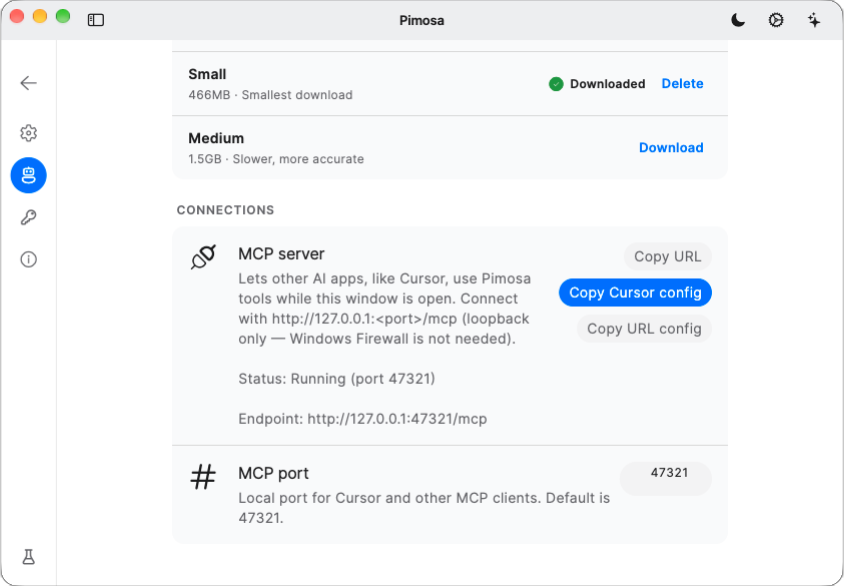
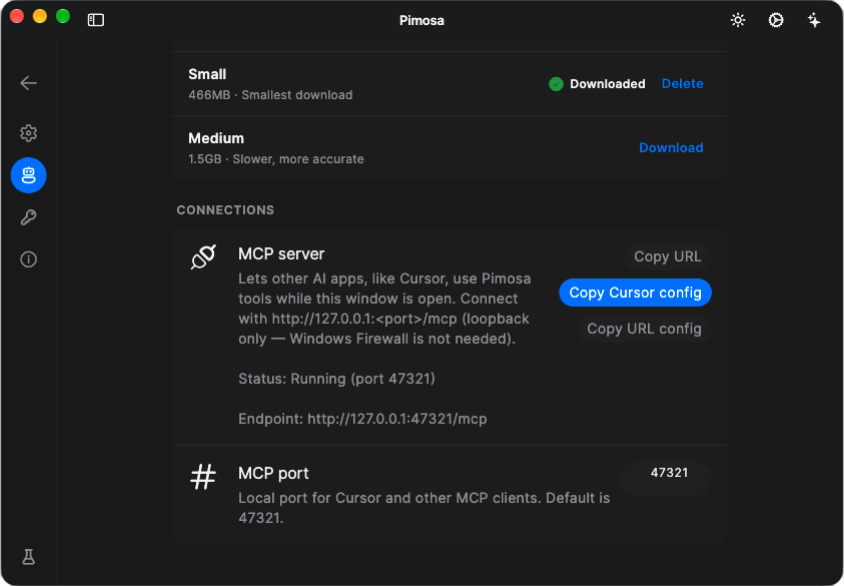
You already chat with an AI app all day. With Pimosa’s MCP server, that app can also reach into Pimosa’s batch tools — while Pimosa stays open on the same computer. No uploads, no cloud service in between.
What MCP is, in one paragraph
MCP (Model Context Protocol) is a way for AI apps to call tools. Pimosa runs a small local server on your machine that exposes its batch tools. When your chat app connects to it, you can type things like “compress every video in this folder to under 25 MB” and the app drives Pimosa while the Pimosa window is open. The files never leave your computer to make this work.
What you can (and can’t) do
You can run the batch tools: compress a folder of videos, convert audio files, strip metadata, resize, merge, reverse, mute, make GIFs, and the rest of the batch list — plus helpers like listing a folder or reading file metadata.
You can’t drive the visual editors (Video Editor, subtitle timeline, PDF page editor) or transcription. Those stay manual in the app. Ask mode never changes files; Agent mode asks before doing anything ambiguous.
Setup in four steps
- Open Pimosa and go to Settings → AI / Agent.
- Turn the MCP server on. It shows Running, the port, and the endpoint URL.
- Copy the address shown there.
- Paste it into your client’s MCP config, and keep Pimosa open.
A Cursor-shaped config looks like this:
Paste into ~/.cursor/mcp.json (global) or .cursor/mcp.json (project). Pimosa can also copy a Cursor snippet from Settings → AI / Agent. Use that copy if it differs from this one.
{
  "mcpServers": {
    "pimosa": {
      "url": "http://127.0.0.1:47321/mcp"
    }
  }
}
47321 is the default port. If you changed it in Pimosa's settings, use your port instead.
Connection refused? Check Pimosa is open, MCP is on, and the port matches.
Every snippet on the site is marked verify until the transport is confirmed against the app — check the address Pimosa shows and your client’s current docs. The full, copy-paste snippets for all nine clients live on the MCP page and in the MCP support guide.
Per-app setup guides


After connecting, ask your client to “list Pimosa tools”. You should see the batch tools and helpers.
What about ChatGPT?
ChatGPT isn’t supported here. Its connectors are remote HTTPS servers that OpenAI’s servers call, so a server on your own computer isn’t reachable from it. We won’t suggest a tunnel to work around that — it would break the local-first setup. Any other MCP client that accepts a server URL works; see the “other apps” recipe.
The license rule
The MCP server follows the same rule as the app: an active license is required before tools run. If you’re new to Pimosa, download it and activate a license.
If you’d rather stay inside Pimosa
The same agent also lives inside the app, where you type requests in a side panel without any external client. It needs a model you connect yourself — your own API key or a local model. Start with What is Agent mode?, or see the AI page for the overview.