Skip to content
Pimosa

Menu

Use Pimosa from your AI app (MCP)

MCP lets another app call Pimosa's tools while the Pimosa window is open.

A local server

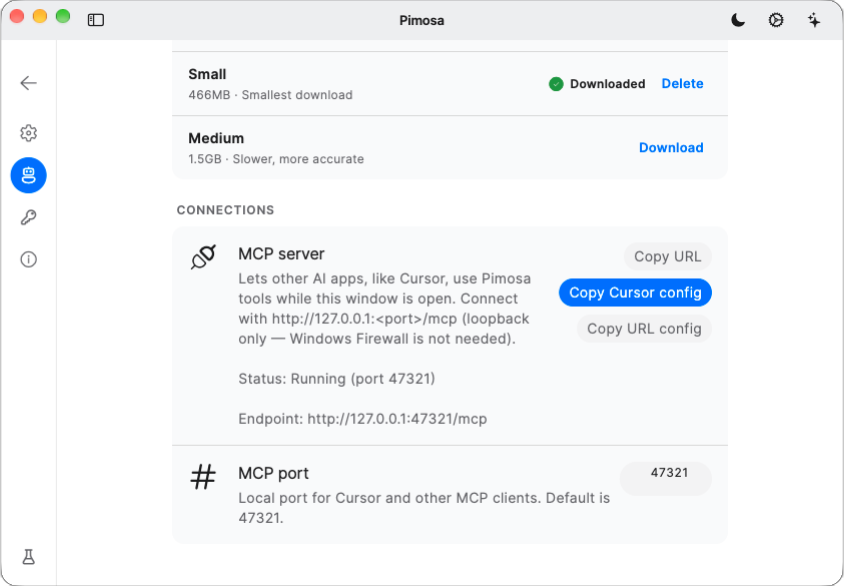
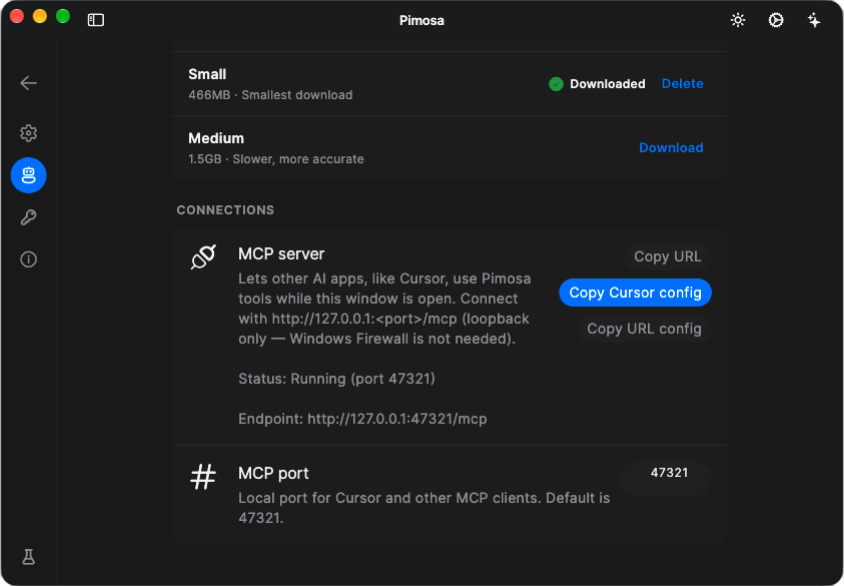
On the same AI / Agent settings page. It shows Running or Stopped, the port, and the endpoint URL.

MCP panel showing Running, the port, the endpoint URL, and Copy
  • You can copy the URL or a Cursor config snippet.
  • The server follows the same license rule. Without a license, tools will not run.
  • It runs only while Pimosa is open.

Address http://127.0.0.1:47321/mcp

What it exposes

The same batch tools as the in-app agent, plus file probe, folder listing, and metadata helpers. It does not expose the visual editors.

Video
compress, convert, resize, merge, flip/rotate, change speed, reverse, mute, GIF, extract audio, extract frames, extract subtitles
Audio
convert, merge, metadata, waveform video
Image
convert, compress, resize, crop/flip/rotate, reverse GIF
PDF
compress, merge, split, encrypt, decrypt
Also
Remove metadata

Look at a file (probe), check paths, list a folder, find media, read EXIF, inspect finished outputs, list the queue, list current inputs, and move finished files into a folder.

Connect an app

The same server works with these apps. Do this with Pimosa open.

  1. Turn on the server in Pimosa → Settings → AI / Agent.
  2. Copy the address shown there.
  3. Add it to the client.
  4. Keep Pimosa open.
  5. Ask the client to "list Pimosa tools".

Prefer a walkthrough? Read the guide: Use Pimosa from Cursor, Claude or Codex

47321 is the default port. If you changed it in Pimosa's settings, use your port instead.

Cursor

Paste into ~/.cursor/mcp.json (global) or .cursor/mcp.json (project). Pimosa can also copy a Cursor snippet from Settings → AI / Agent. Use that copy if it differs from this one.

{
  "mcpServers": {
    "pimosa": {
      "url": "http://127.0.0.1:47321/mcp"
    }
  }
}

Claude Desktop

Local URL servers go through the stdio bridge in claude_desktop_config.json.

Needs Node. Claude's Custom connectors are for public remote servers, not a server on your computer.

{
  "mcpServers": {
    "pimosa": {
      "command": "npx",
      "args": [
        "-y",
        "mcp-remote",
        "http://127.0.0.1:47321/mcp"
      ]
    }
  }
}

Claude Code

Claude Code CLI.

Use --transport sse if Pimosa serves SSE.

claude mcp add --transport http pimosa http://127.0.0.1:47321/mcp

VS Code

.vscode/mcp.json, or the user mcp.json. Or Command Palette → "MCP: Add Server". This is for GitHub Copilot agent mode.

{
  "servers": {
    "pimosa": {
      "type": "http",
      "url": "http://127.0.0.1:47321/mcp"
    }
  }
}

Windsurf

~/.codeium/windsurf/mcp_config.json

{
  "mcpServers": {
    "pimosa": {
      "serverUrl": "http://127.0.0.1:47321/mcp"
    }
  }
}

Zed

settings.json

If the installed Zed only takes commands, use the mcp-remote bridge as for Claude Desktop.

{
  "context_servers": {
    "pimosa": {
      "url": "http://127.0.0.1:47321/mcp"
    }
  }
}

Codex

~/.codex/config.toml (OpenAI Codex CLI / IDE).

Or command = "npx" and args = ["-y", "mcp-remote", "<address>"].

[mcp_servers.pimosa]
url = "http://127.0.0.1:47321/mcp"

Gemini CLI

~/.gemini/settings.json

{
  "mcpServers": {
    "pimosa": {
      "httpUrl": "http://127.0.0.1:47321/mcp"
    }
  }
}

LM Studio

App → Program → Edit mcp.json

{
  "mcpServers": {
    "pimosa": {
      "url": "http://127.0.0.1:47321/mcp"
    }
  }
}

Other apps

If it accepts a server URL, paste the address. If it only launches commands, use the bridge below.

ChatGPT, on the desktop or the web, is not supported. Its connectors are remote HTTPS servers that OpenAI's servers call, so a server on your computer isn't reachable.

npx -y mcp-remote http://127.0.0.1:47321/mcp

If it fails

  • Is Pimosa open, with the server showing Running?
  • Is the port the same as in the config? It can change.
  • Is a license active?
  • Did you restart the client after editing its config?
  • Does a firewall block localhost?
  • Connection refused? Check Pimosa is open, MCP is on, and the port matches.