 Pimosa
MCP
How do I use Pimosa with VS Code?
Last updated
Pimosa’s MCP server is a local HTTP endpoint. VS Code can call Pimosa’s batch tools while the Pimosa window is open.
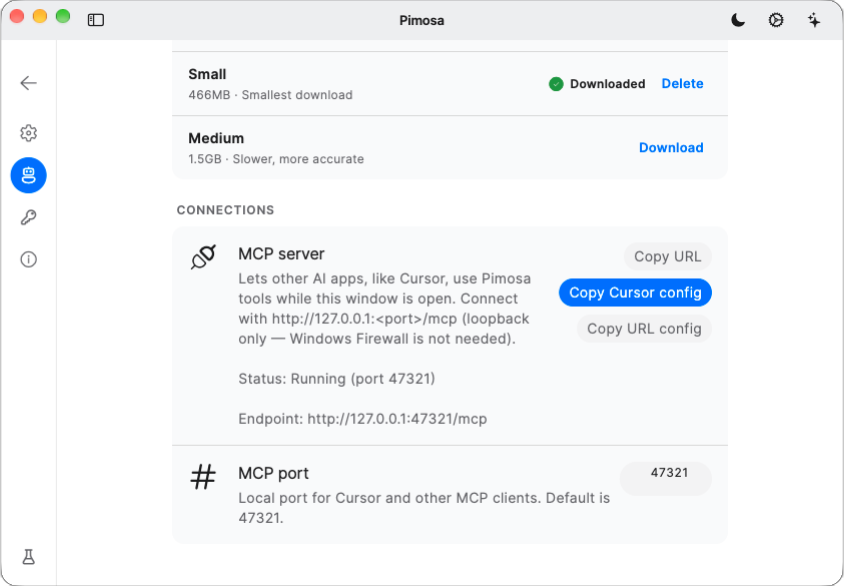
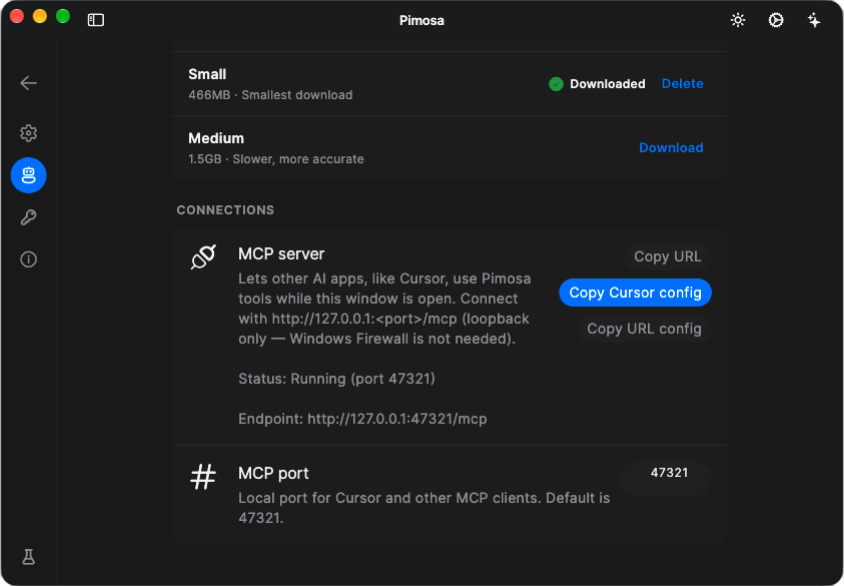
Endpoint address: http://127.0.0.1:47321/mcp
47321 is the default port. If you changed it in Pimosa's settings, use your port instead.
1. Turn on the server in Pimosa
- Open Pimosa → Settings → AI / Agent.
- Turn the MCP server on. It shows Running or Stopped, the port, and the endpoint URL.
- Copy the URL.
2. Add it to VS Code
.vscode/mcp.json, or the user mcp.json. Or Command Palette → "MCP: Add Server". This is for GitHub Copilot agent mode.
{
  "servers": {
    "pimosa": {
      "type": "http",
      "url": "http://127.0.0.1:47321/mcp"
    }
  }
}
3. Keep Pimosa open
The server works only while Pimosa is open. It follows the same license rule. Without a license, tools will not run.
4. List Pimosa tools
Ask VS Code to “list Pimosa tools”. You should see the batch tools plus probe, folder listing, and metadata helpers. It does not expose the visual editors.
5. If it fails
- Is Pimosa open, with the server showing Running?
- Is the port the same as in the config? It can change.
- Is a license active?
- Did you restart the client after editing its config?
- Does a firewall block localhost?
- Connection refused? Check Pimosa is open, MCP is on, and the port matches.
Was this helpful?