 Pimosa
AI agent
How do I use Pimosa’s AI agent?
Last updated
The agent is a chat panel on the side of the app. In Agent mode it can run Pimosa’s batch tools on files on your computer. A license is required to send a message. It does nothing until you choose a model.
New to Agent mode? Start with What is Agent mode? (and do I need it?) — it covers when you need it and how it connects to a model.
1. Pick Agent or Ask
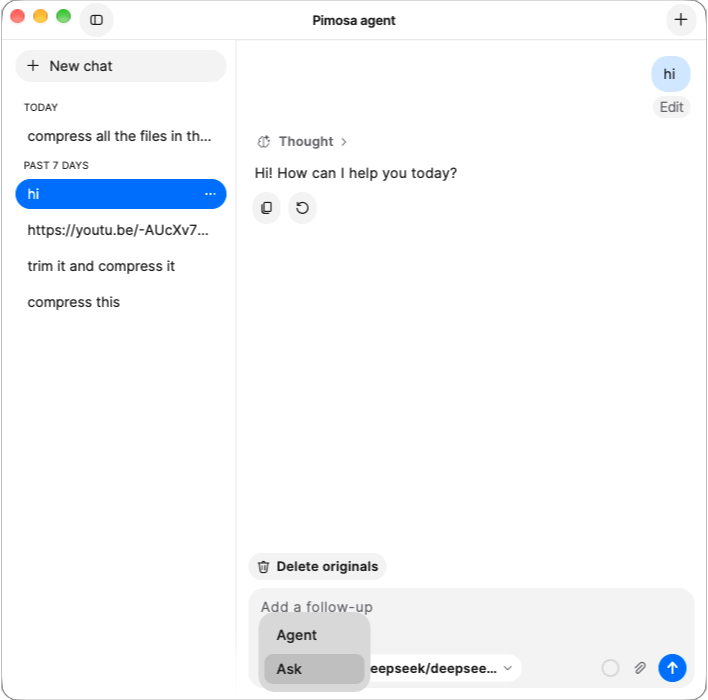
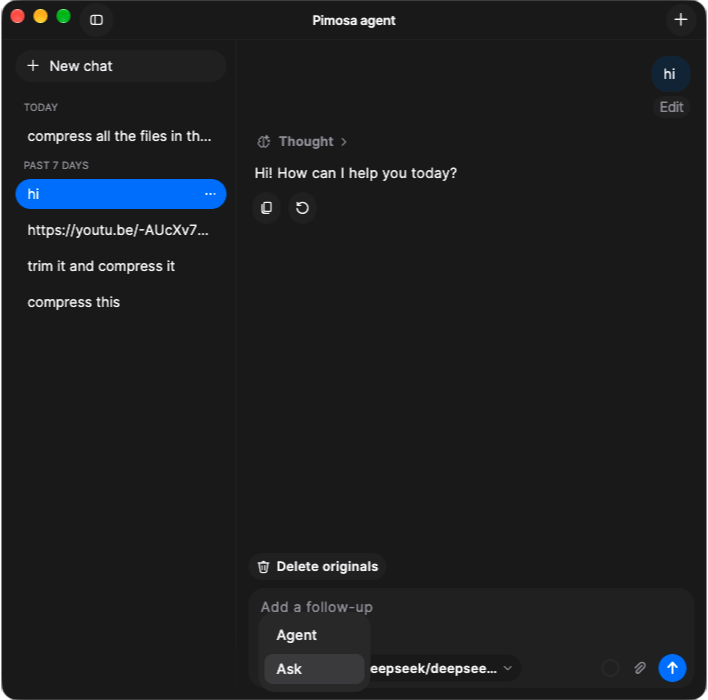
Switch modes from the composer.
- Agent — can read files and run tools (compress, convert, and the rest of the batch list). It asks you when a request is vague, and it asks before searching subfolders.
- Ask — read-only. It can look at files, folders, metadata, and finished outputs. It does not compress, convert, move, or otherwise change files. If you ask it to edit something in Ask mode, it will not.
You can also start a new chat, edit the last prompt, and retry.
2. Connect a model
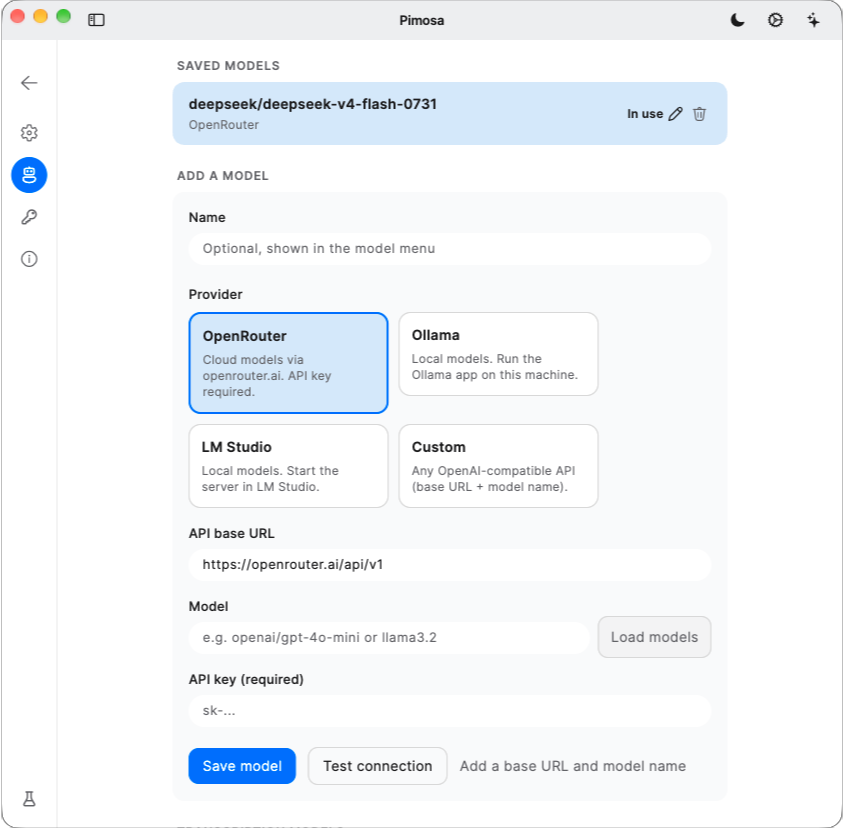
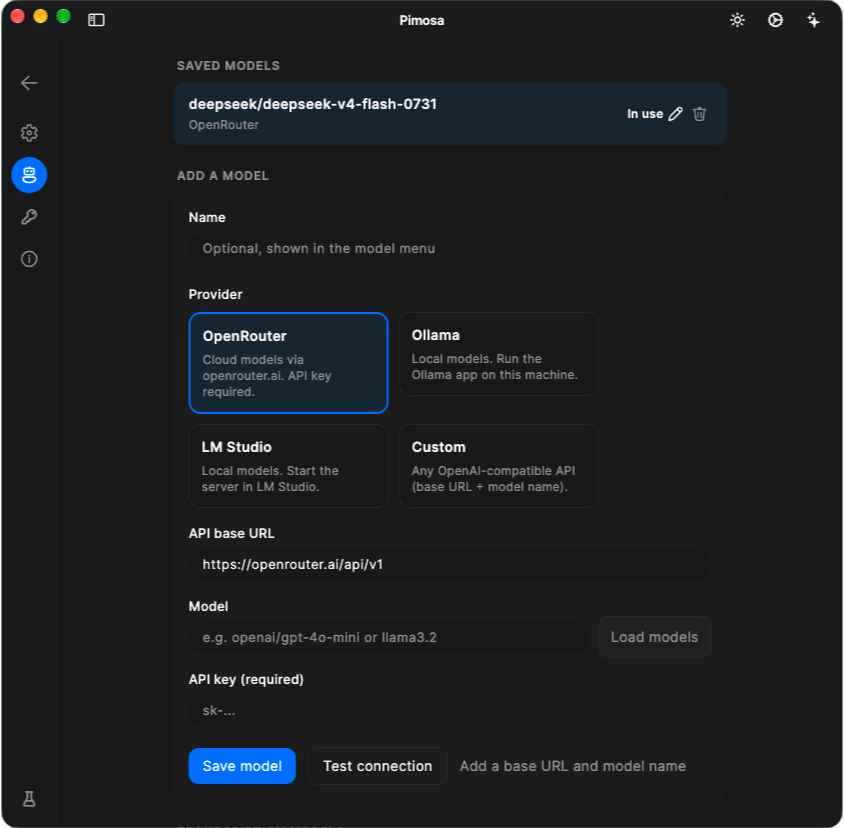
Saved under Settings → AI / Agent. You can keep several and pick the active one. There are four presets — OpenRouter, Ollama, LM Studio, and Custom — and no default model. Each saved model has a label, provider, base URL, model name, and an API key when the provider needs one. You can test a connection and load the model list from the provider before saving.
| Provider | What to set |
|---|---|
| OpenRouter | Cloud models from openrouter.ai. Preset base URL https://openrouter.ai/api/v1. An API key is required. |
| Ollama | Local models. The Ollama app has to be running on this machine. Default address http://127.0.0.1:11434/v1. |
| LM Studio | Local models. Start the local server in LM Studio. Default address http://127.0.0.1:1234/v1. |
| Custom | Any OpenAI-compatible API. You supply the base URL and model name. DeepSeek uses this preset with base URL https://api.deepseek.com. |
The chat context budget shown in the panel is 128,000 tokens. Longer threads get trimmed to fit.
For size advice, see choosing a model.
3. Attach files and send a message
- Drop files or a folder on the panel, or pick them. The agent sees those paths.
- It can also look through folders you name, including aliases such as Desktop, Downloads, Documents, Pictures, Movies, and Music.
- The agent only works while Pimosa is open and a model is selected and ready. Local models need Ollama or LM Studio actually running. A saved URL does nothing if the local server is off.
4. What Agent mode can run
Batch tools, not the visual editors:
- Video: compress, convert, resize, merge, flip/rotate, change speed, reverse, mute, GIF, extract audio, extract frames, extract subtitles.
- Audio: convert, merge, metadata, waveform video.
- Image: convert, compress, resize, crop/flip/rotate, reverse GIF.
- PDF: compress, merge, split, encrypt, decrypt.
- Also: remove metadata.
- Helpers: look at a file (probe), check paths, list a folder, find media, read EXIF, inspect finished outputs, list the queue, list current inputs, and move finished files into a folder.
It can pause and ask you a short question with a few choices before it does something ambiguous (“this folder only” vs “include subfolders”).
5. What it cannot do
- It does not drive the Video Editor, subtitle timeline, Add Music, video cropper, video trimmer, audio trimmer, or PDF page editor. Those stay manual.
- It does not download videos or transcribe. Those tools are in the app, not in the agent’s tool list.
- Ask mode cannot change files.
6. Where the chat goes
The chat and its tool requests go to the model you choose. The app does not upload your media to Pimosa to convert it. With a local model, the chat stays on your machine. See privacy.
To call the same tools from Cursor or another app, see MCP.
Was this helpful?