 Pimosa
License
Pimosa says ‘license required’ — fix
Last updated
A license is required before jobs run, including the AI agent. If the app says a license is required, no key is activated on this device.
1. Activate a key
License keys are tied to a device after you activate them.
- After purchase, the receipt email includes the license key. Check spam if it is missing.
- Open the License page from the sidebar in Pimosa.
- Paste the key and activate.
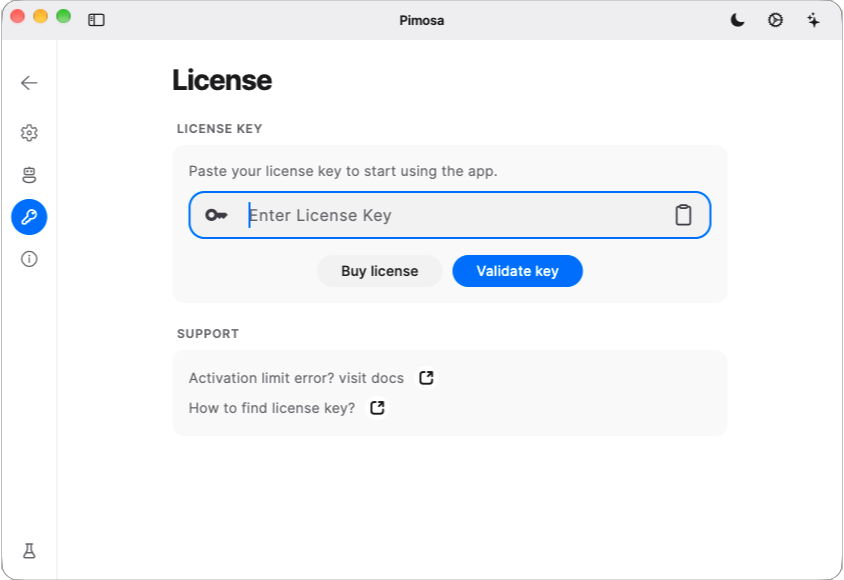
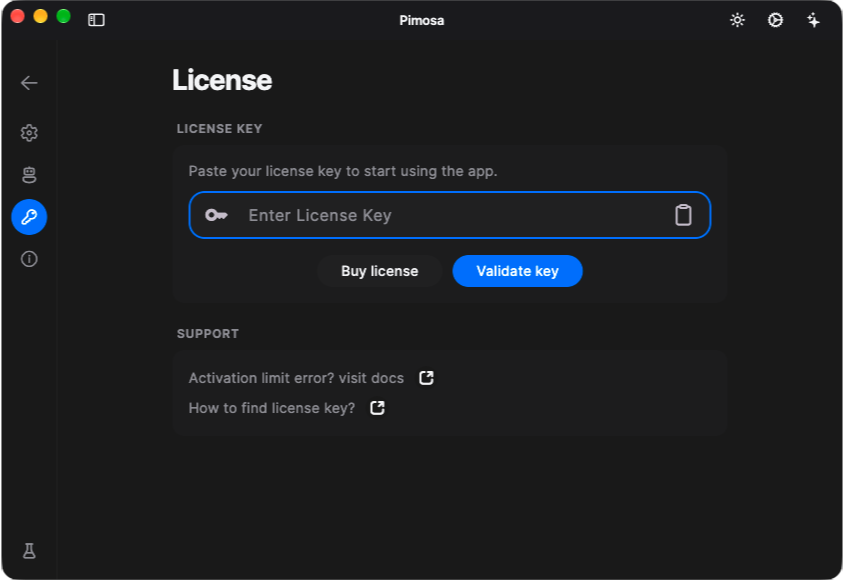
The License page shows customer name, email, and purchase date, and lets you copy or remove the key.
2. Unlink a device (activation limit)
A Personal license is one device at a time. Plus covers 3 devices (for example a Mac and a PC, or a laptop and a desktop). Team is 5 seats; seats can be moved between people.
If you see The license key has reached the activation limit (for example Activated devices: 1/1):
- On the computer that still holds the seat, open the License page.
- Choose Unlink (the app labels this Unlink device).
- Activate the same key on the new computer.
If you uninstalled Pimosa without unlinking, the seat can stay in use.
Lemon Squeezy (the key is a UUID): unlink on the website.
- Open Manage license.
- Use Email and order with the checkout email and order number, or switch to License key.
- Copy the key if you need it, then choose Unlink on the device you no longer use.
- Paste the key in Pimosa on the new computer.
Creem: open Creem My Orders, log in with the email you paid with, and manage the key and devices there.
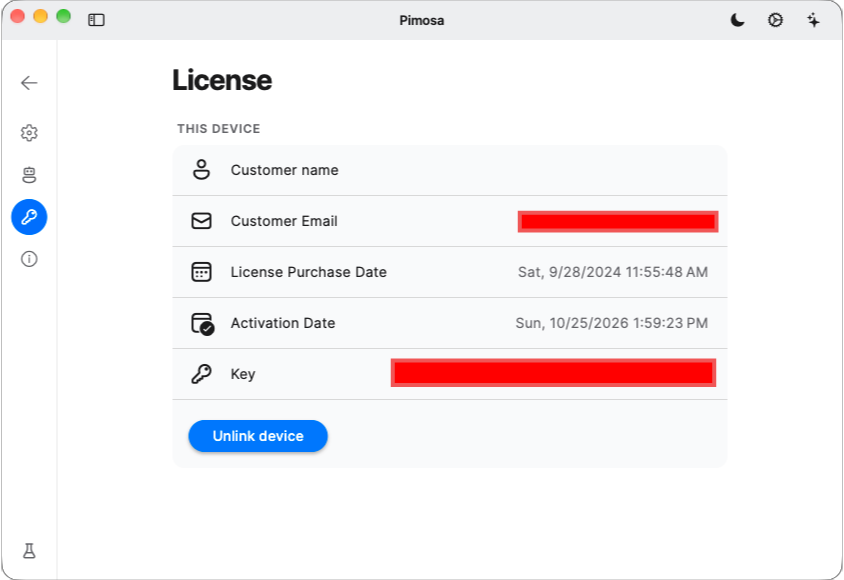
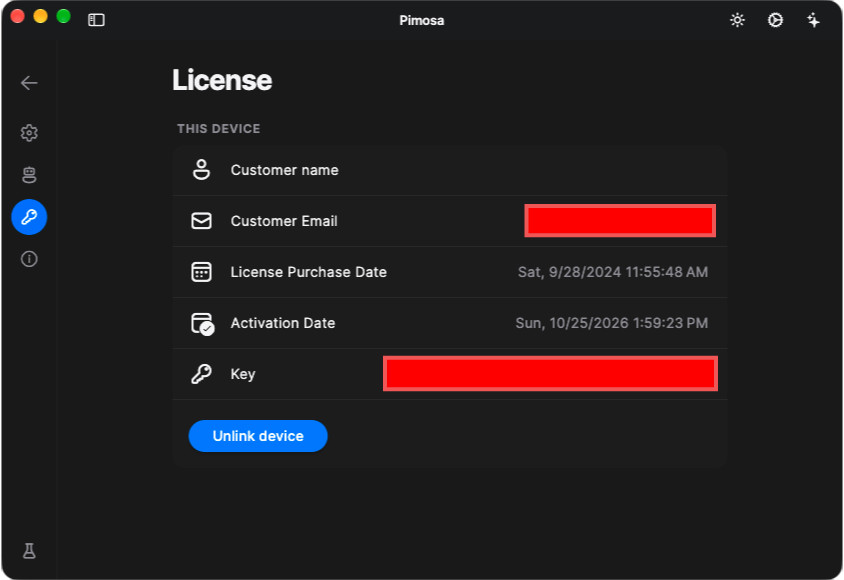
You can also deactivate a device from the License page in the app when you move to a new computer.
3. Lost key
The key is on the receipt email from checkout. Creem purchases also show it in Creem My Orders.
If you cannot find a Lemon Squeezy key, email ansh@pimosa.app from the address you used at checkout.
Refunds: full refund within 7 days of purchase, no questions asked. Email ansh@pimosa.app. See the refund policy.
Was this helpful?