 Pimosa
AI agent
How do I set up Agent mode with OpenRouter?
Last updated
This is the fastest way to turn on Agent mode: one API key from OpenRouter, pasted into Pimosa. About 5 minutes. New to Agent mode? Start with What is Agent mode?
1. What you will need
- A Pimosa license (a license is required to send a message).
- An OpenRouter account.
- About 5 minutes.
2. Create an OpenRouter API key
- Create an account on openrouter.ai and open the keys page in their console.
- Create a key and copy it. Treat it like a password: it is yours, and Pimosa never sees it anywhere but your settings.
3. Save the key in Pimosa
- Open Pimosa → Settings → AI / Agent.
- Add a saved model, choose OpenRouter as the provider (base URL
https://openrouter.ai/api/v1), and paste your key. - Use Test connection and load the model list before saving. There is no default model; you pick one.
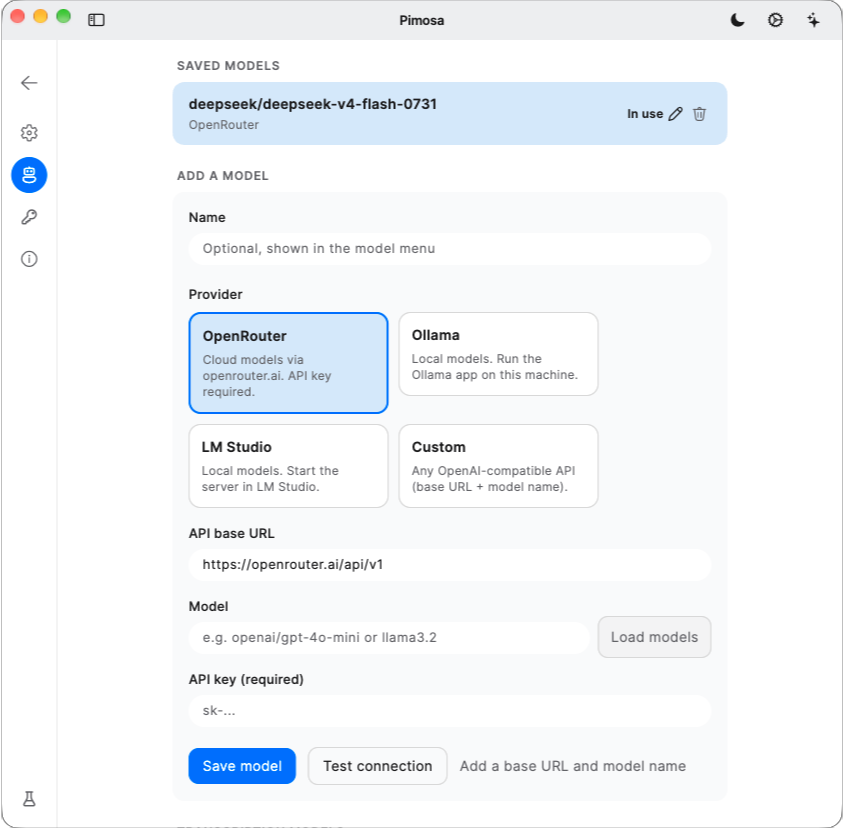
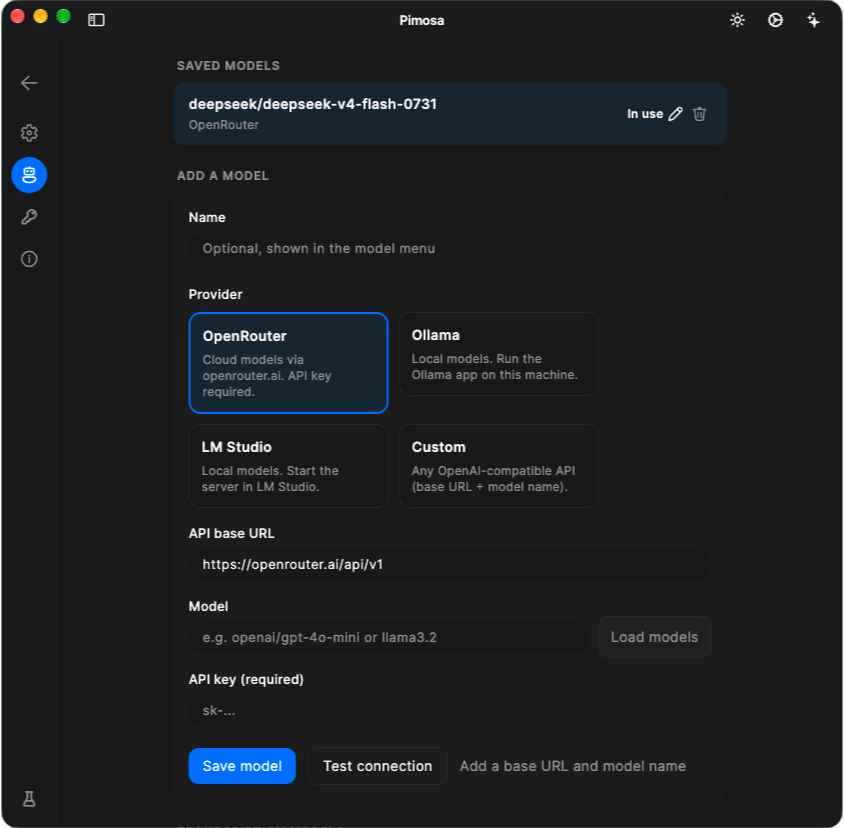
The provider list is under Settings → AI / Agent (OpenRouter, Ollama, LM Studio, Custom).
4. Pick a model that is good at tool calling
Agent mode is plain tool calling, so pick a model that is good at tool calling, not just a good chat model.
- Suggested cheap, capable pick: DeepSeek V4 Flash via OpenRouter, if it is in the loaded list. Ansh tested it and it handled agent tool calls reliably. Copy the id OpenRouter shows; Pimosa does not ship a default model.
- Any frontier model that supports tool calling also works. We do not rank models.
See Which model should I use? for the full advice, including local sizes.
5. Test safely, then try Agent mode
- Start in Ask mode on a test folder. Ask mode cannot change files.
- Switch to Agent mode on a copy of a few files.
- Read the plan it shows before it runs.
- Keep Delete original off. It is off by default.
6. If something does not work
- The key is rejected — check you pasted the whole key, and that it is active in OpenRouter’s console.
- No models are listed — check the connection test, then reload the model list.
- The plan looks wrong — it picks the wrong tool, invents settings, or loops. Switch models. See choosing a model, or go fully local with Ollama or LM Studio.
For everything the agent can and cannot run, see the AI agent article. For what usage costs, see How much does Agent mode cost?
Privacy
Media files are processed on your computer. The optional AI agent sends the chat and its tool requests to the model you choose. Media processing still runs on your computer inside Pimosa.
See privacy for the full picture, including local models, which keep the chat on your machine.
Was this helpful?