 Pimosa
AI agent
How do I run Agent mode on a local model?
Last updated
This is the fully local option: the model runs on your computer, and the chat stays on your machine. Best when you want prompts to stay with you and you are fine downloading a model first. New to Agent mode? Start with What is Agent mode?
1. Pick a size first
Agent mode is plain tool calling, so pick a model that is good at tool calling, not the biggest brain you can download:
- 8B or larger: recommended.
- About 4B: borderline. May work for some people.
- Below 4B: not recommended. In our tests they were not reliable at calling tools — they may call the wrong tool or ignore instructions. Do not trust them with real files in Agent mode.
The model also needs to support tool calling. More on this in Which model should I use?
2. LM Studio
-
Install LM Studio and download an 8B+ model that supports tool calling.
-
Start the local server in LM Studio (default address
http://127.0.0.1:1234/v1). -
In Pimosa → Settings → AI / Agent, add a saved model with the LM Studio provider and that address.
3. Ollama
-
Install Ollama and pull an 8B+ model that supports tool calling.
-
Keep Ollama running (default address
http://127.0.0.1:11434/v1). -
In Pimosa → Settings → AI / Agent, add a saved model with the Ollama provider and that address.
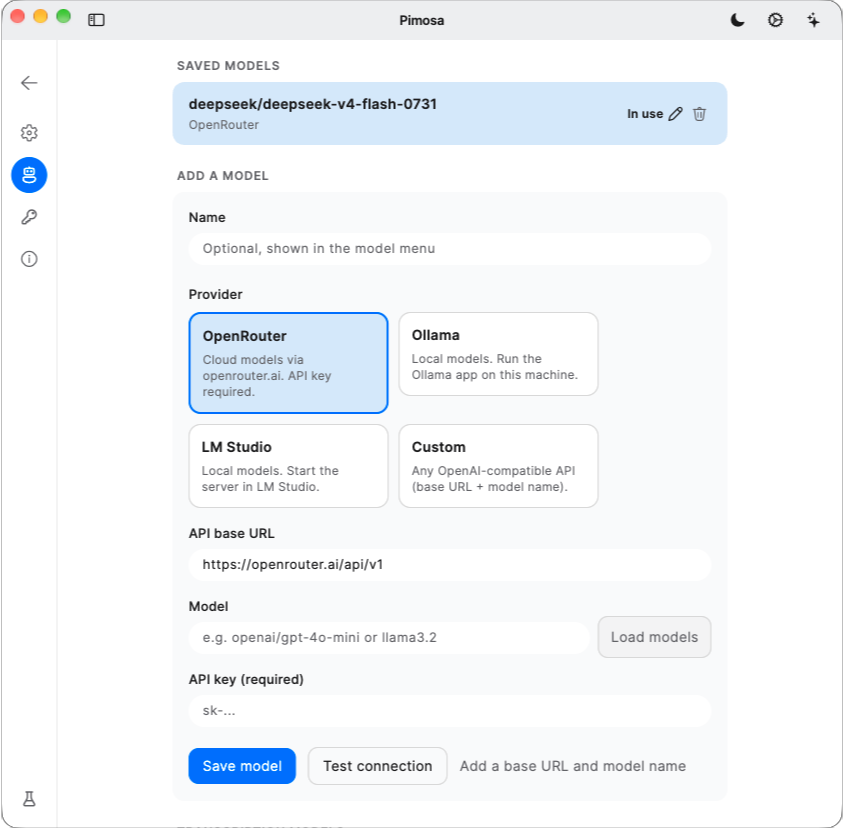
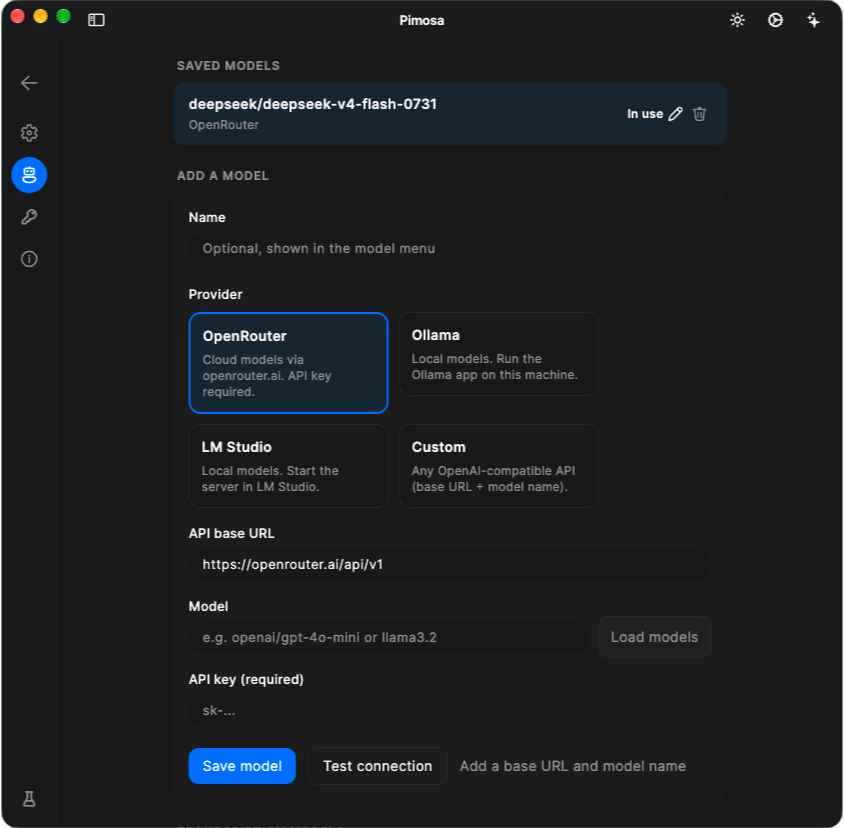
The local server has to actually be running. A saved URL does nothing if the app behind it is closed.
4. Test safely
- Start in Ask mode first. Ask mode cannot change files.
- Then try Agent mode on a copy of a few files.
- Watch the plan it shows before it runs.
- Keep Delete original off. It is off by default.
5. Signs the model is not a fit
It calls the wrong tool, invents settings, loops, or ignores “this folder only”. Switch to a larger model — see Which model should I use?
Privacy
With a local model, the chat stays on your computer. Media processing was always local: files stay on your machine. See privacy for everything that does and does not leave your computer.
For the full technical reference, see the AI agent article. If you would rather use a cloud key, see OpenRouter setup.
Was this helpful?