 Pimosa
AI agent
How do I use DeepSeek with Pimosa?
Last updated
DeepSeek is a good direct pick for Agent mode: it is cheap, and Ansh tested DeepSeek V4 Flash — it handled agent tool calls reliably. You get the key from DeepSeek and paste it into Pimosa. No middleman, and Pimosa never marks up what DeepSeek charges you. New to Agent mode? Start with What is Agent mode?
Pimosa has no DeepSeek preset. Use the Custom provider (any OpenAI-compatible API). There is no default model; you enter the id yourself.
1. Get a DeepSeek API key
Create an account on DeepSeek’s platform and generate an API key. Copy it — you will paste it into Pimosa.
2. Save it in Pimosa
- Open Pimosa → Settings → AI / Agent.
- Add a saved model.
- Choose Custom and enter DeepSeek’s documented base URL
https://api.deepseek.comwith your key. - For the model name, copy the current model id from DeepSeek’s model docs. Do not guess an id — DeepSeek publishes the live list there.
- Use Test connection before saving.
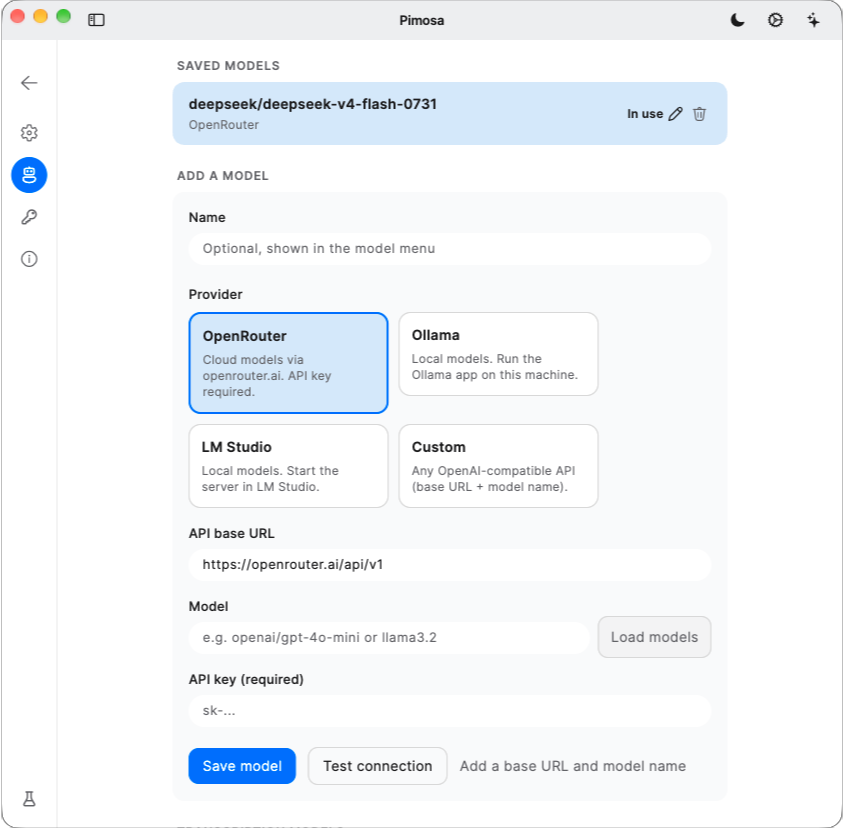
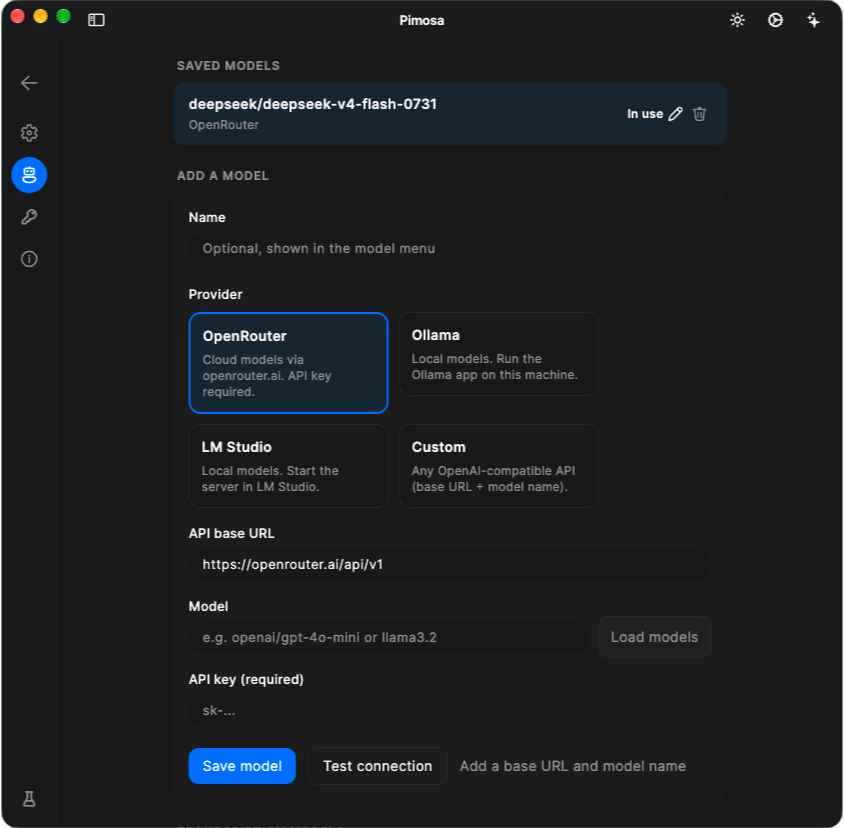
3. Pick the model
Suggested cheap, capable pick: DeepSeek V4 Flash. Copy whatever id DeepSeek currently lists for it in their docs. Pimosa does not ship a default model.
4. Test safely
Same safe path as with OpenRouter:
- Start in Ask mode on a test folder. Ask mode cannot change files.
- Switch to Agent mode on a copy of a few files.
- Read the plan before it runs.
- Keep Delete original off. It is off by default.
If the model calls the wrong tool, invents settings, or loops, switch models — see Which model should I use?
5. Prefer one key for many models?
OpenRouter can also reach DeepSeek, alongside other providers, with a single key. See Set up Agent mode with OpenRouter. For what usage costs either way, see How much does Agent mode cost?
Privacy
Media files are processed on your computer. The optional AI agent sends the chat and its tool requests to the model you choose. Media processing still runs on your computer inside Pimosa.
See privacy for the full picture.
Was this helpful?