 Pimosa
Transcribe video and audio to SRT
Download a model once and transcribe on-device. Nothing is sent to a cloud speech service.

How it works
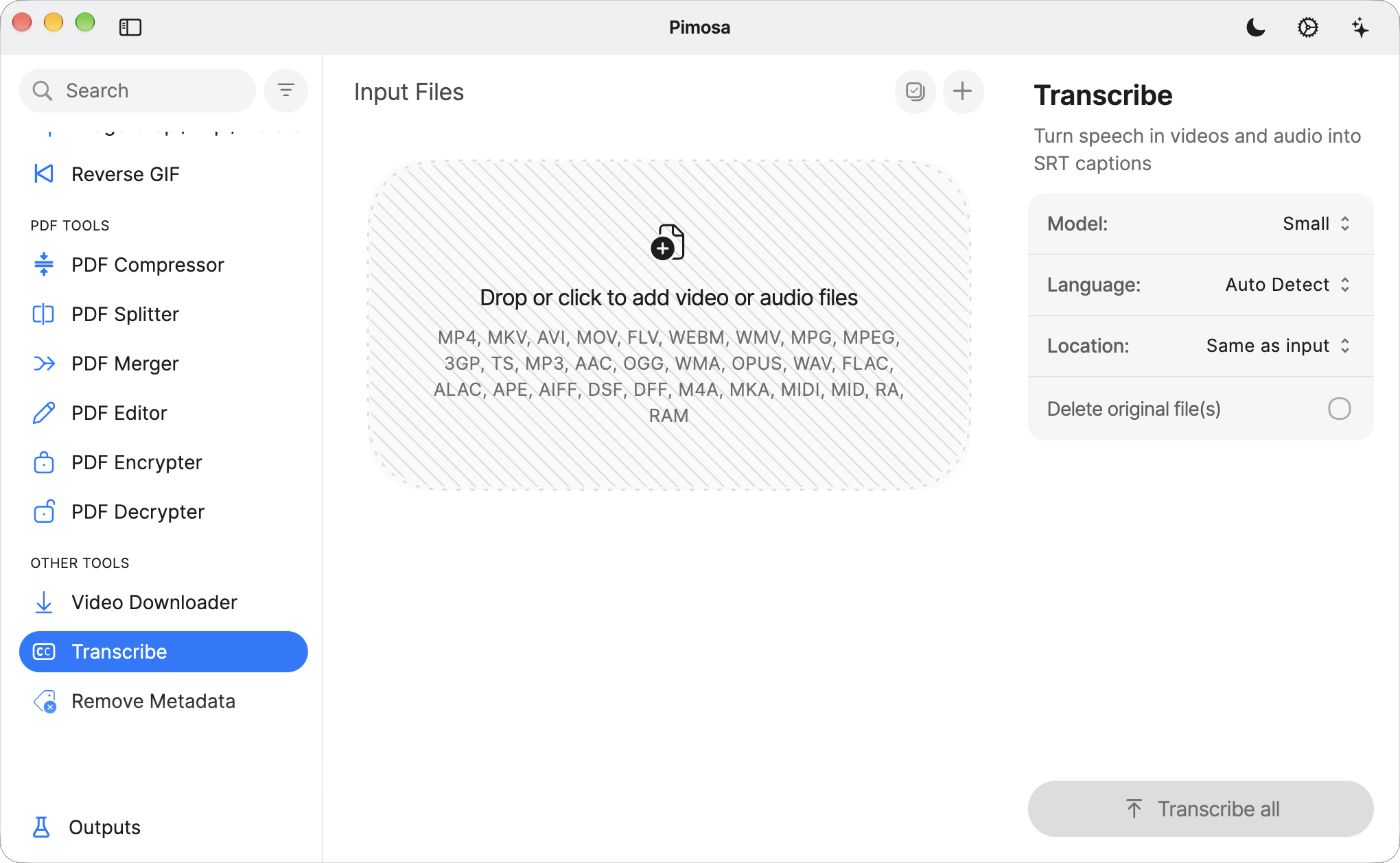
Drop your files
Drag files or a folder onto the tool, or click to pick them.
Choose a model and language
Use the Fastest model or download a more accurate one once; set the language or Auto Detect.
Press Transcribe
The new file appears next to the original, or in your default output folder.
Done by hand in the app (the AI agent can’t run this one).
Specs
- Opens
- MP4MKVAVIMOVFLVWebMWMVMPGMPEG3GPTSMP3, AAC, OGG, WMA, Opus, WAV, FLAC, ALAC, APE, AIFF, DSF, DFF, M4A, MKA, MIDI, MID, RA, RAM
- Saves as
- SRT
- Settings
- Model, language
- Batch
- Many files in one queue; change settings per file
- Limits
- First run needs a model download
- Originals
- Untouched; the SRT is saved next to it (Delete original is opt-in and removes the media file)
Settings explained
- Models
- Fastest (~670 MB, default), High Accuracy (~2.9 GB), Medium (1.5 GB), Small (466 MB)
- Languages
- Auto Detect + 23 listed
- Setting
- Output folder, delete original (removes the media file)
Good to know
- First run needs a model download
- Output is SRT, not a formatted transcript or translation
Pimosa vs online tools
Your file stays on this computer. Nothing is uploaded to process it.
Upload needed?
Pimosa: No. Media processing stays on your computer.
Typical online tool: Yes. You send the file to a server.
Size caps?
Pimosa: No website upload cap. You’re limited by your own disk.
Typical online tool: Hosts often cap uploads.
Works offline?
Pimosa: Yes.
Typical online tool: No. You need a connection to upload.
Questions
Does transcription use the cloud?
No. It runs on your computer after a model download.
Does it translate?
No.
Related tools
Add Subtitles to Video
Get captions in from an embedded track, an SRT file, your keyboard or on-device transcription, edit them on a timeline, and export the way you need.
Extract Subtitles
If your video already contains subtitles, save them as a separate SRT file in seconds.
Audio Extractor
Save a video’s soundtrack as an audio file. Choose the format and, for multi-language files, the exact track.


