 Pimosa
Extract audio from any video
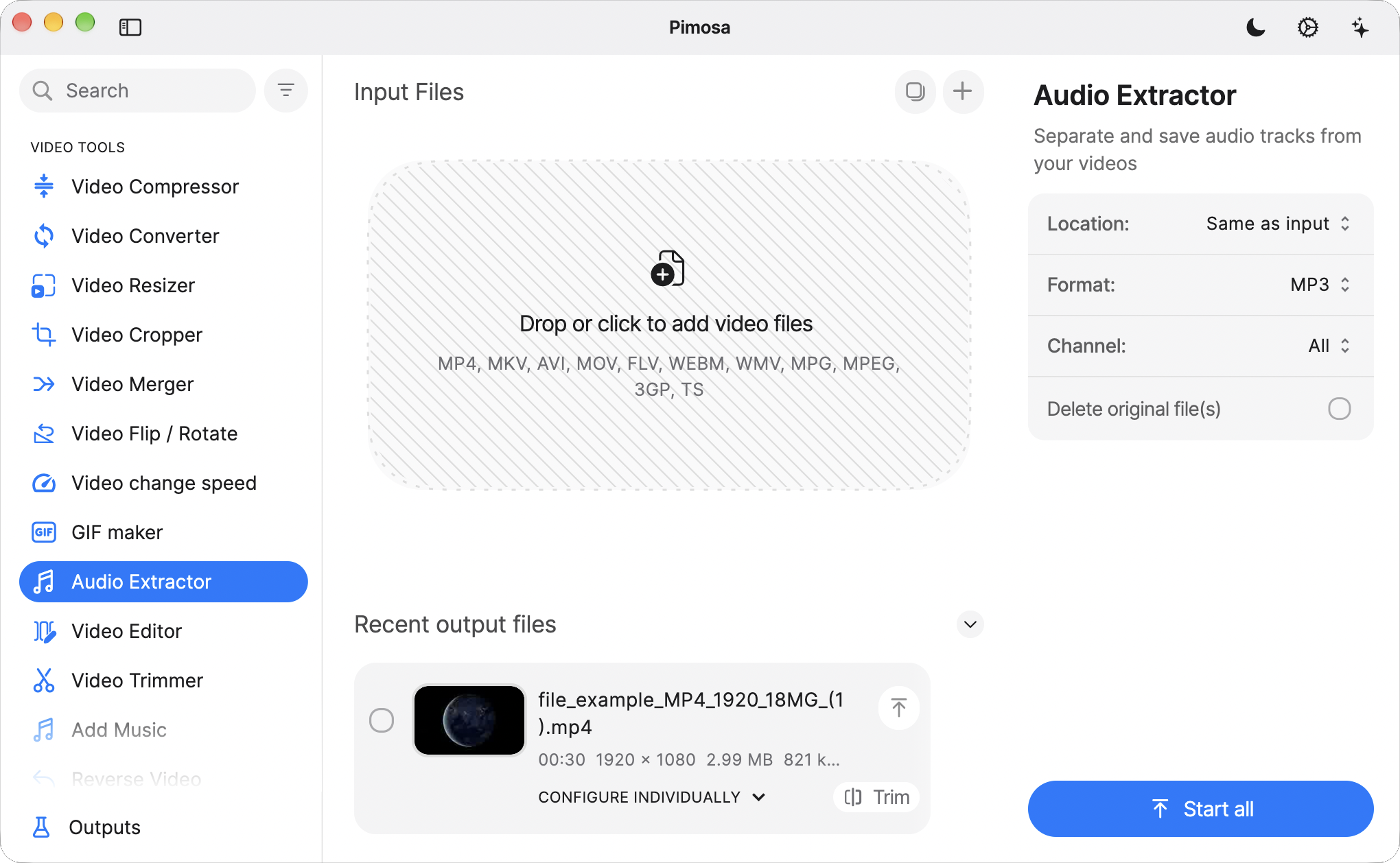
Save a video’s soundtrack as an audio file. Choose the format and, for multi-language files, the exact track.

How it works
Drop your videos
Drag files or a folder onto the tool, or click to pick them.
Pick a format
Choose MP3, AAC, FLAC, WAV or another format, and the track if the video has several.
Press Extract
The new file appears next to the original, or in your default output folder.
Or just say:Extract the audio from every MP4 in this folder as MP3
Specs
- Opens
- MP4MKVAVIMOVFLVWebMWMVMPGMPEG3GPTS
- Saves as
- MP3AACFLACWAVOGGOpusWMAALACAIFFAC3DTS
- Settings
- Format, audio track, optional trim
- Batch
- Many files in one queue; change settings per file
- Limits
- One track per job
- Originals
- Untouched; a new file is saved next to it (deleting the original is opt-in)
Settings explained
- Format
- MP3 (default), AAC, FLAC, WAV, OGG, Opus, WMA, ALAC, AIFF, AC3, DTS
- Setting
- Audio track (default first)
- Setting
- Optional trim
- Setting
- Output folder, delete original
Good to know
- One track per job
- A video with no audio has nothing to extract
Pimosa vs online tools
Your file stays on this computer. Nothing is uploaded to process it.
Upload needed?
Pimosa: No. Media processing stays on your computer.
Typical online tool: Yes. You send the file to a server.
Size caps?
Pimosa: No website upload cap. You’re limited by your own disk.
Typical online tool: Hosts often cap uploads.
Works offline?
Pimosa: Yes.
Typical online tool: No. You need a connection to upload.
Questions
Can I pick which language track to extract?
Yes, when the file has several tracks.
Which formats can I save as?
MP3, AAC, FLAC, WAV, OGG, Opus, WMA, ALAC, AIFF, AC3, DTS.
Can I extract only part of the audio?
Yes, use the optional trim.


