 Pimosa
A simple timeline editor for quick cuts
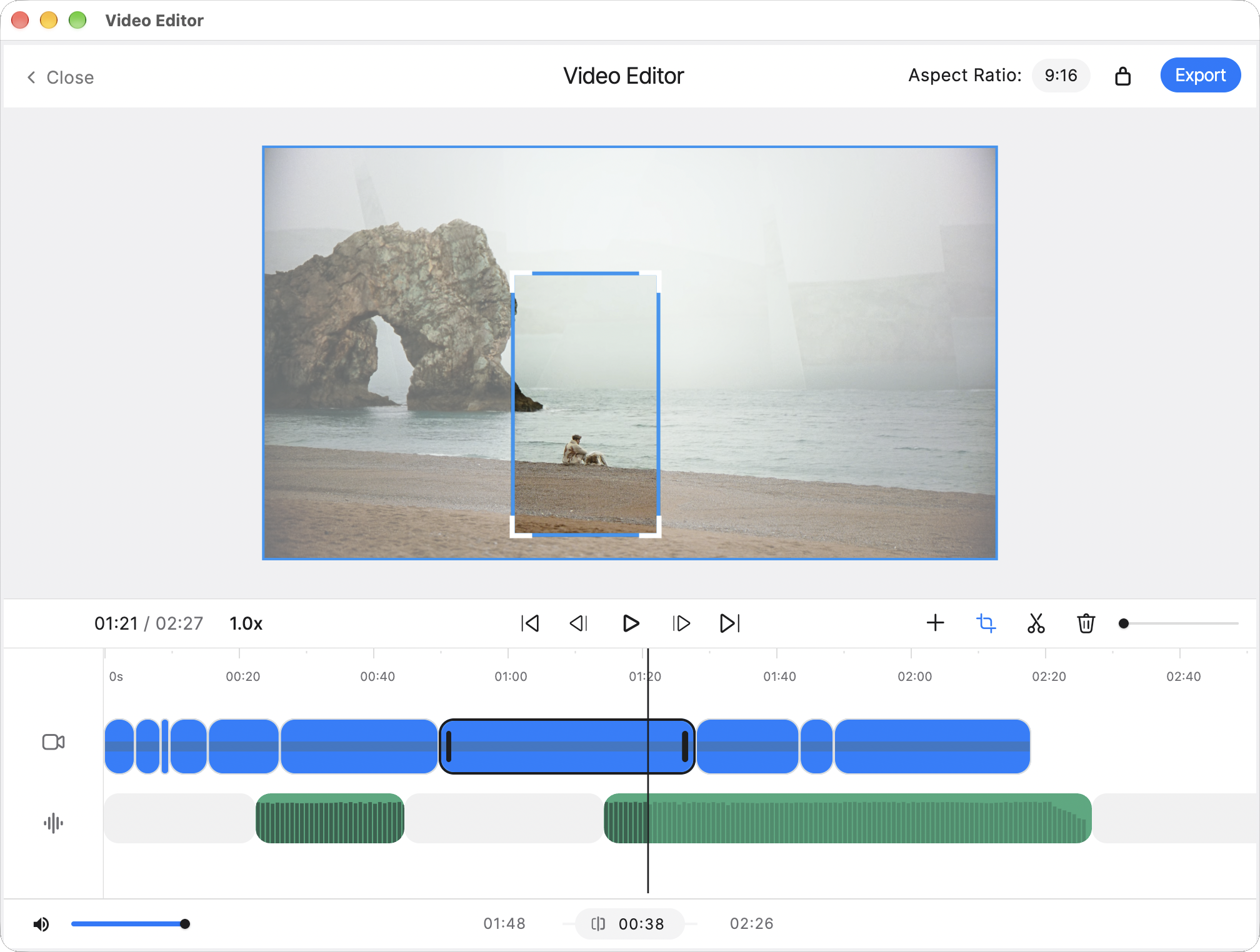
For edits the one-click tools can’t do: cut clips into pieces, drop parts, crop, reorder and export one file. No effects library, just fast hard cuts.

How it works
Drop your videos
Drag files or a folder onto the tool, or click to pick them.
Cut and arrange
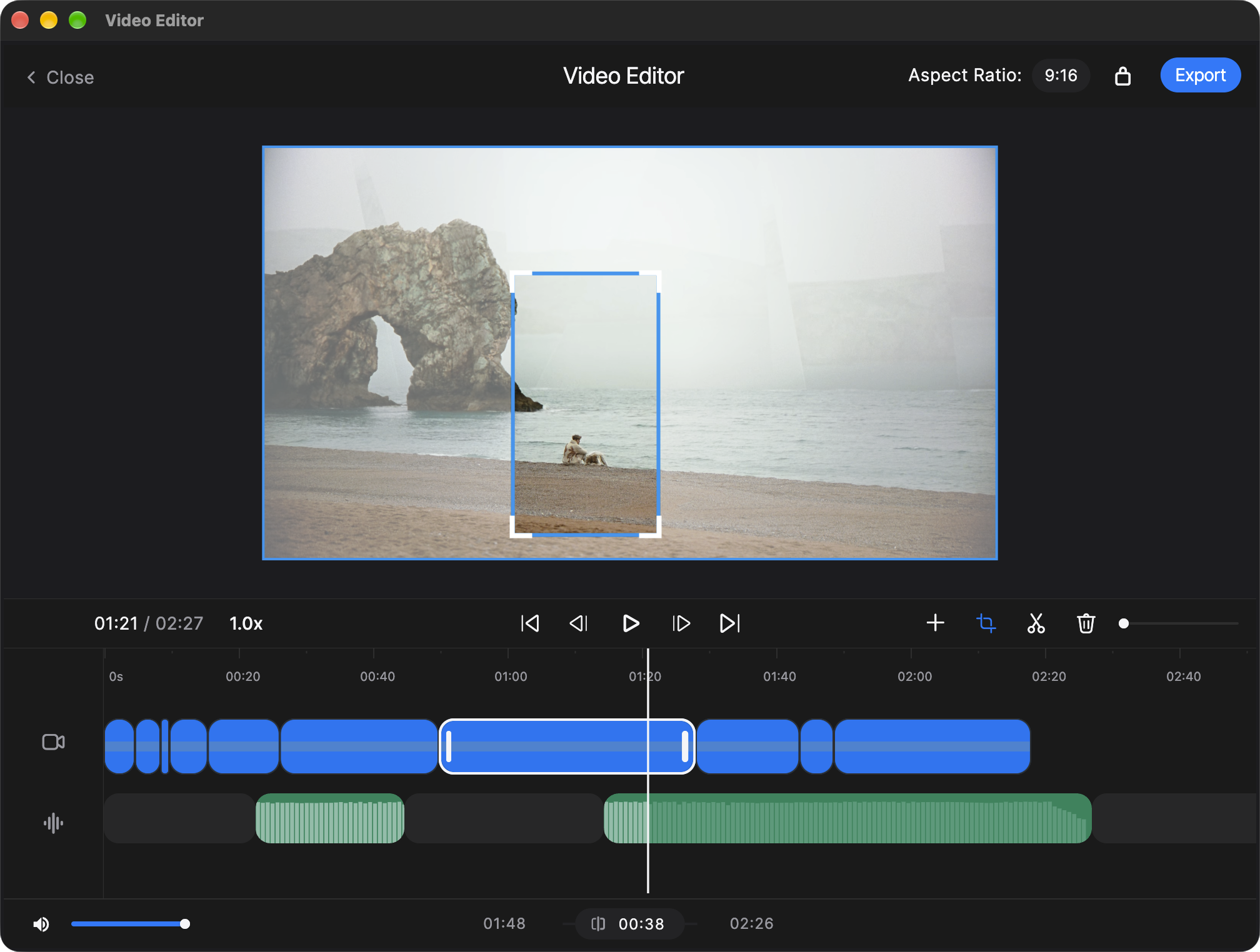
Cut at the playhead, drop parts, crop, reorder, and set the output ratio and volume.
Press Export
The new file appears next to the original, or in your default output folder.
Done by hand in the app (the AI agent can’t run this one).
Specs
- Opens
- MP4MKVAVIMOVFLVWebMWMVMPGMPEG3GPTS + audio
- Saves as
- MP4 (H.264)
- Settings
- Cuts, crop per clip, ratio + padding, volume, audio lane
- Batch
- One project, many clips
- Limits
- No transitions, titles, stickers, color grades or exported speed changes
- Originals
- Untouched; a new file is saved next to it (deleting the original is opt-in)
Settings explained
- Setting
- Multiple clips + audio lane
- Setting
- Cut at playhead (Cmd+B / Ctrl+B), delete, trim edges, reorder
- Setting
- Crop per clip
- Setting
- Output aspect ratio with blur or color padding
- Setting
- Volume per clip; choose language track
- Setting
- Preview at 0.25x–2x (not exported)
- Setting
- Projects can be reopened
Good to know
- No transitions, titles, stickers, color grades or exported speed changes
- The AI agent cannot drive the editor
Pimosa vs online tools
Your file stays on this computer. Nothing is uploaded to process it.
Upload needed?
Pimosa: No. Media processing stays on your computer.
Typical online tool: Yes. You send the file to a server.
Size caps?
Pimosa: No website upload cap. You’re limited by your own disk.
Typical online tool: Hosts often cap uploads.
Works offline?
Pimosa: Yes.
Typical online tool: No. You need a connection to upload.
Questions
Does it have transitions or titles?
No. Use hard cuts; titles belong in Add Subtitles.
Can I reopen a project?
Yes, from the editor home list.
What format does export use?
MP4 (H.264).
Related tools
Video Trimmer
Drag a range on the timeline and export just that part. Your original stays untouched unless you choose otherwise.
Video Merger
Drag clips into order, trim each one if you like, and Pimosa joins them into a single file, scaling and padding clips of different shapes to one frame.
Add Music to Video
Place music or voice-over clips on a lane under your video, trim and move them, and balance the volume against the original sound.


