 Pimosa
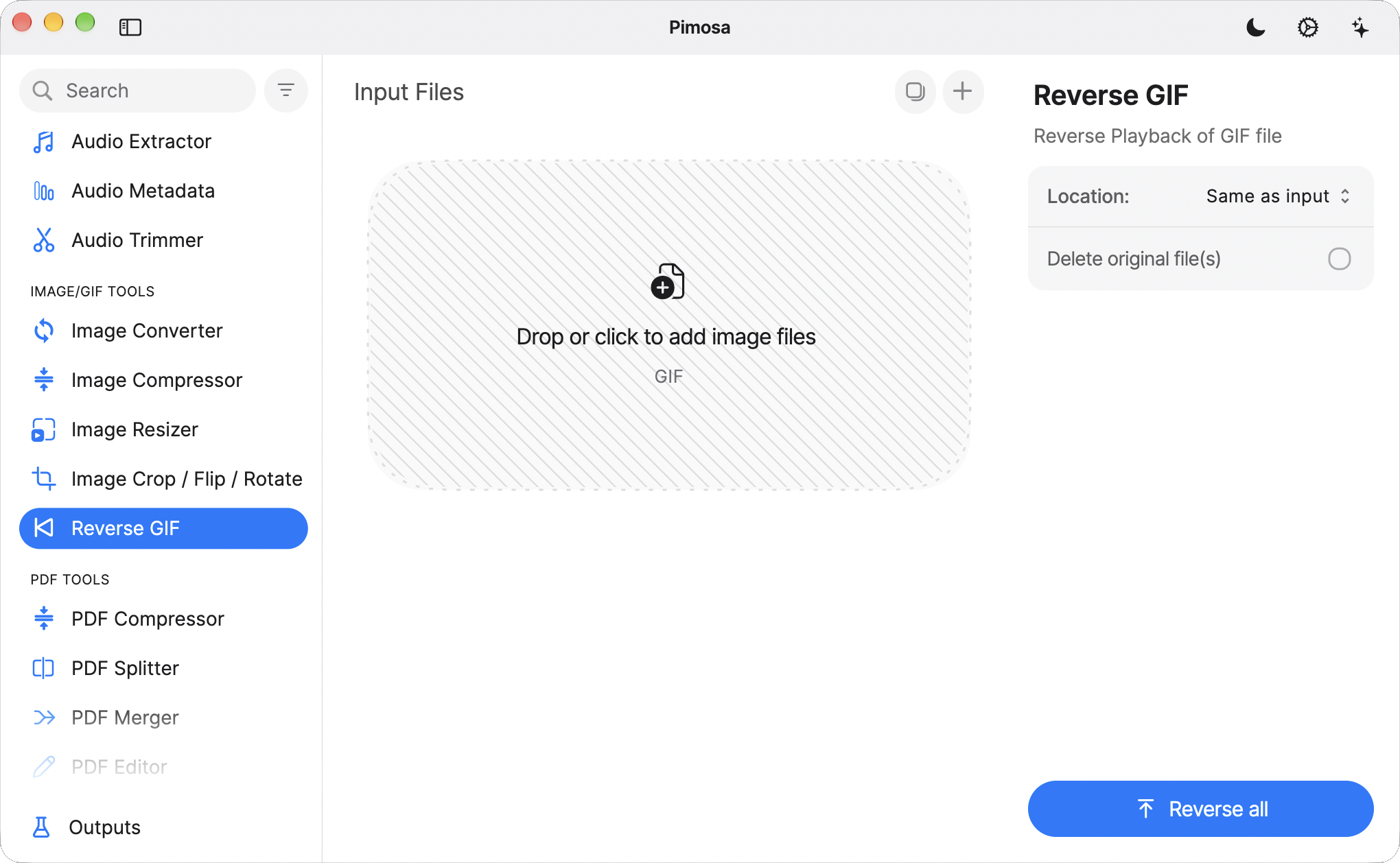
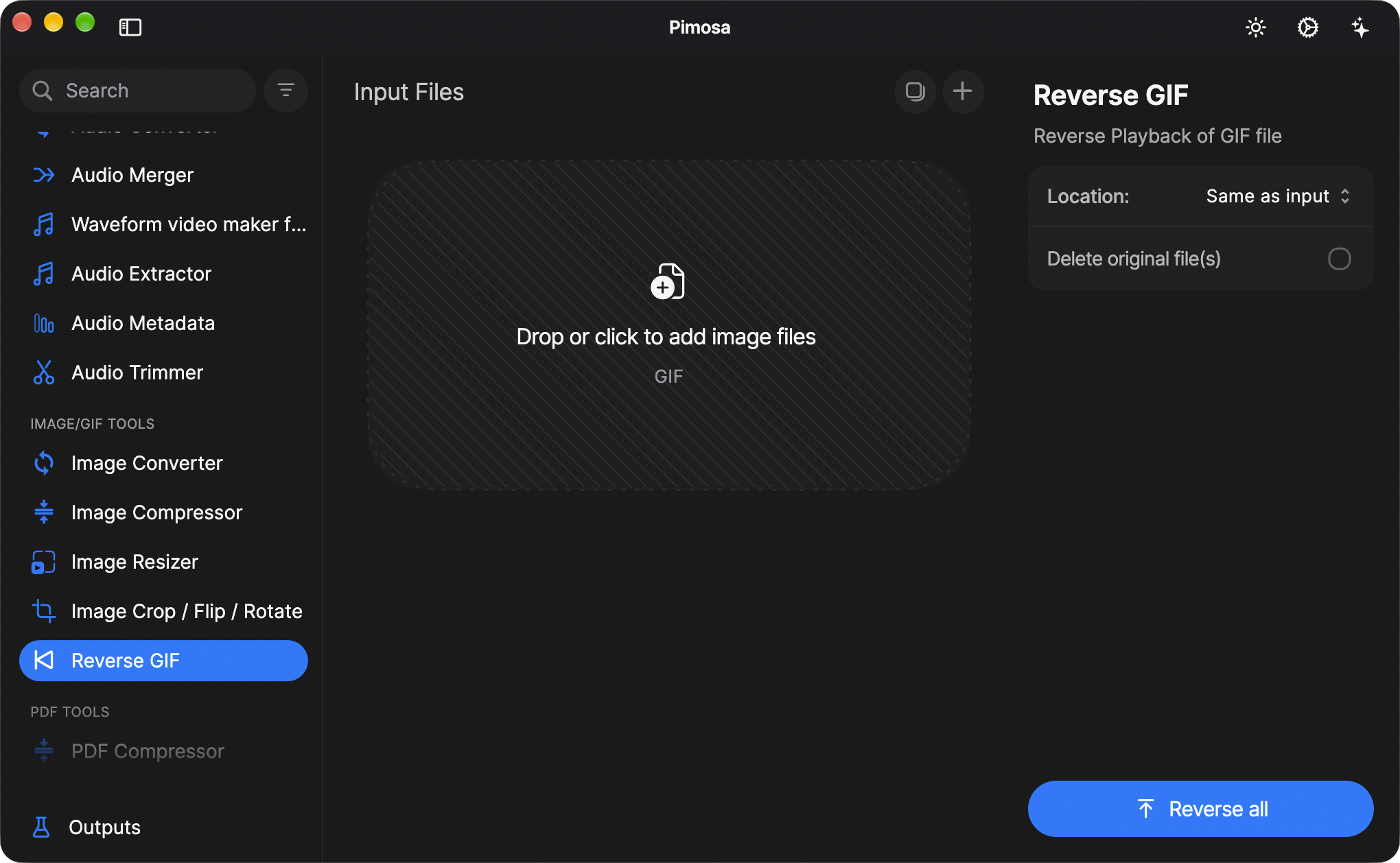
Reverse a GIF, right on your computer
Make a rewind or boomerang-style loop: Pimosa reverses the frame order and keeps each frame’s timing.

How it works
Drop your images
Drag files or a folder onto the tool, or click to pick them.
Nothing to set
Frame order is reversed and each frame keeps its timing.
Press Reverse
The new file appears next to the original, or in your default output folder.
Or just say:Reverse every GIF in this folder
Specs
- Opens
- GIF
- Saves as
- GIF
- Settings
- None
- Batch
- Many files in one queue; change settings per file
- Limits
- Input must be an animated GIF
- Originals
- Untouched; a new file is saved next to it (deleting the original is opt-in)
Settings explained
- Setting
- Output folder, delete original
Good to know
- Input must be an animated GIF
- Frame order reversed; timing stays with frames
Pimosa vs online tools
Your file stays on this computer. Nothing is uploaded to process it.
Upload needed?
Pimosa: No. Media processing stays on your computer.
Typical online tool: Yes. You send the file to a server.
Size caps?
Pimosa: No website upload cap. You’re limited by your own disk.
Typical online tool: Hosts often cap uploads.
Works offline?
Pimosa: Yes.
Typical online tool: No. You need a connection to upload.
Questions
What does “invert GIF” mean?
Most people mean playing it backwards, which is what Reverse GIF does. It does not invert colors.
Is it online?
No, it runs on your computer.
Related tools
Reverse Video
Searching for a video reverser online? Pimosa does it on your Mac or PC instead: no upload, and no file size limit from a website.
GIF Maker
Trim the moment you want, set the frame rate and size, and export a GIF. Short clips, modest FPS and small sizes keep GIFs light.
Image Compressor
Shrink photos and GIFs for the web, email or storage. Pick a quality percent or a maximum size, and decide whether camera data stays. GIFs are compressed losslessly.


