 Pimosa
Crop, flip and rotate images
A quick visual editor for stills and GIFs: crop to a ratio, mirror, rotate.

How it works
Drop your images
Drag files or a folder onto the tool, or click to pick them.
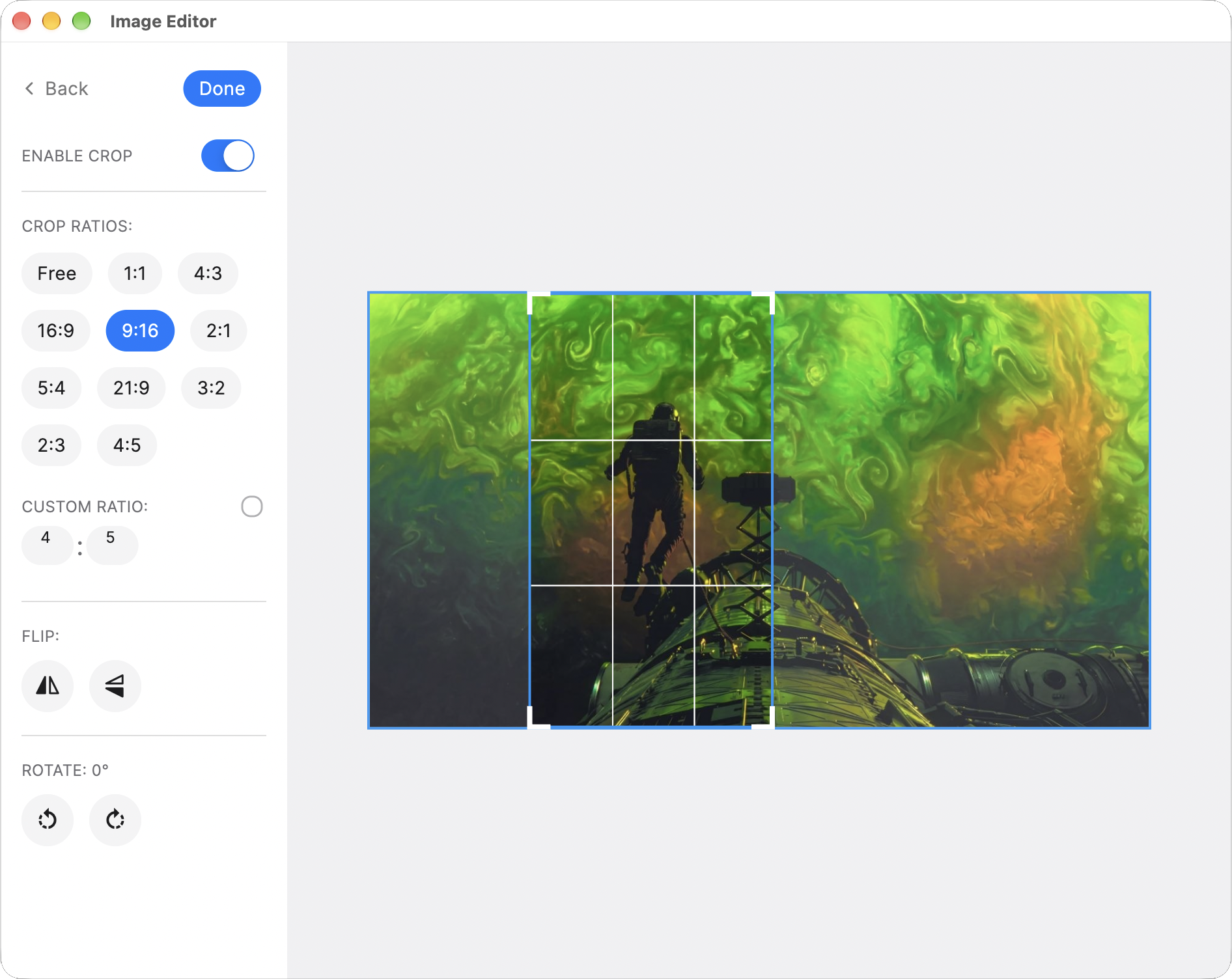
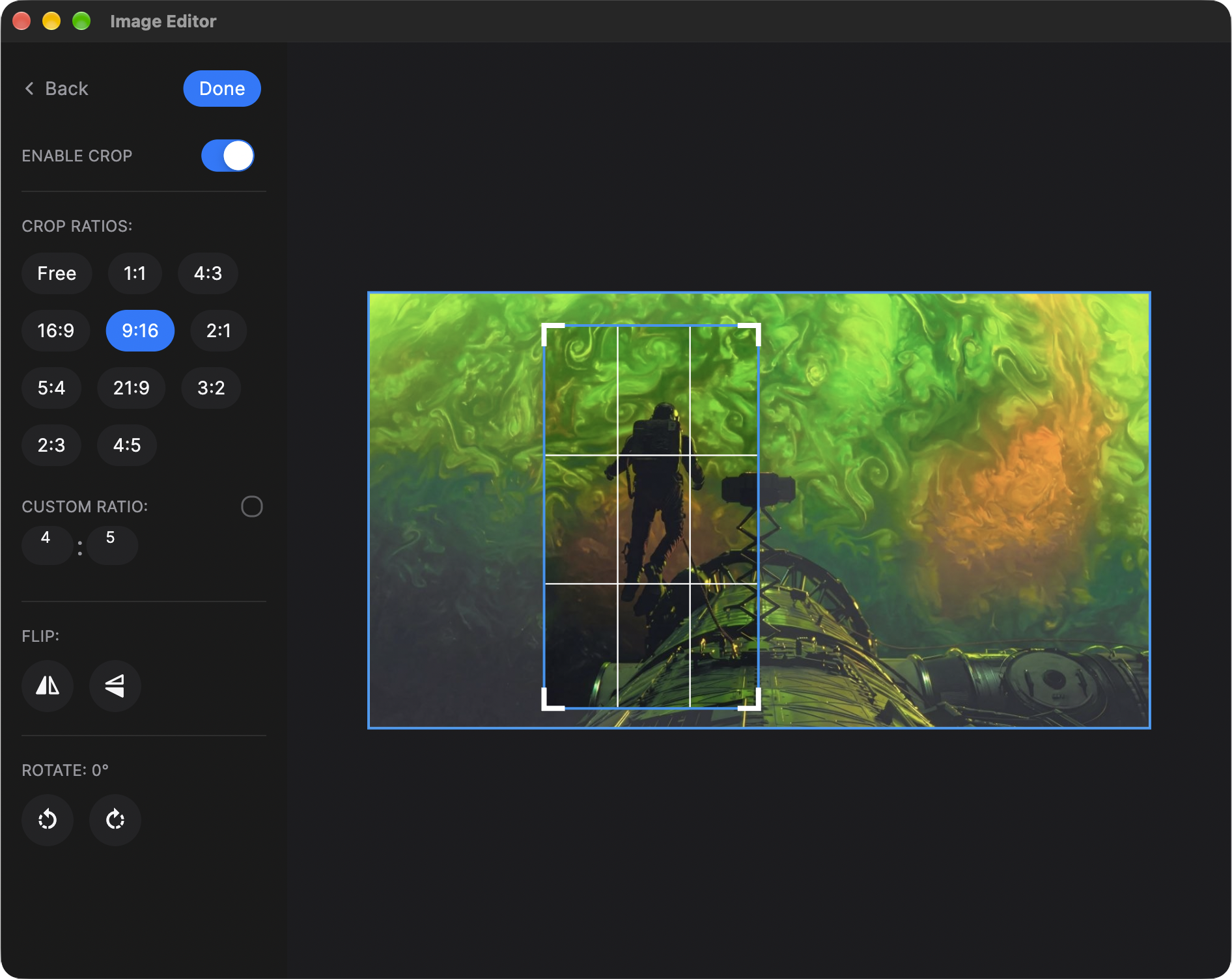
Crop, flip or rotate
Drag a crop box or lock a ratio, mirror, and rotate in 90° steps.
Press Save
The new file appears next to the original, or in your default output folder.
Or just say:Rotate all images in this folder 90 degrees
Specs
- Opens
- JPGJPEGPNGWebPBMPTIFFHEICGIFDNG
- Saves as
- Same format as input
- Settings
- Crop + ratio, flip, rotation
- Batch
- Many files in one queue; change settings per file
- Limits
- One crop for the whole image or GIF
- Originals
- Untouched; a new file is saved next to it (deleting the original is opt-in)
Settings explained
- Setting
- Crop on/off; ratios Free, 1:1, 4:3, 16:9, 9:16, 2:1, 5:4, 21:9, 3:2, 2:3, 4:5, custom
- Setting
- Flip horizontal/vertical
- Setting
- Rotate in 90° steps
- Setting
- Output folder, delete original
Good to know
- One crop for the whole image or GIF
Pimosa vs online tools
Your file stays on this computer. Nothing is uploaded to process it.
Upload needed?
Pimosa: No. Media processing stays on your computer.
Typical online tool: Yes. You send the file to a server.
Size caps?
Pimosa: No website upload cap. You’re limited by your own disk.
Typical online tool: Hosts often cap uploads.
Works offline?
Pimosa: Yes.
Typical online tool: No. You need a connection to upload.
Questions
Can I crop a GIF?
Yes, one crop applies to all frames.
Can I rotate by any angle?
No, 90-degree steps.
What format is the output?
The same format as the input.
Related tools
Image Resizer
Set width and height (with or without aspect lock) for one image or hundreds. GIFs keep their animation.
Image Compressor
Shrink photos and GIFs for the web, email or storage. Pick a quality percent or a maximum size, and decide whether camera data stays. GIFs are compressed losslessly.
Video Cropper
Drag a crop box over your video, lock it to 9:16 for Reels and TikTok or any other ratio, and trim the length at the same time.


