 Pimosa
GIF Compressor for Discord: Size Limits and How to Shrink Files
Ansh Rathod
Media EditingGif CompressorDiscordCompress Gif

You made the perfect reaction GIF. You hit upload in Discord. And then: file too large. Discord’s GIF size limits catch everyone eventually, especially if your GIF has many frames, high resolution, or came straight from a screen recording without compression.
This guide explains Discord’s GIF limits and how to compress GIFs offline on Mac and Windows using Pimosa, no browser upload, no guessing whether a random compressor site will watermark your file.
Discord GIF size limits
Discord applies different limits depending on your account tier:
| Account | Max GIF size |
|---|---|
| Free | 8 MB |
| Nitro Basic | 10 MB |
| Nitro | 50 MB (up to 500 MB for some media in servers) |
For most people sharing GIFs in DMs and channels, the 8 MB free limit is the one that matters. A 15-second screen recording exported as GIF can easily hit 20–40 MB without compression.
Discord also has dimension limits for embedded GIFs (commonly cited around 320px width for inline preview), but the hard blocker most users hit first is file size, not dimensions.
Why GIFs get so large
GIF is an old format. It stores every frame as a full image (with some delta compression between frames), which means:
-
More frames = bigger file, A 3-second GIF at 15 fps has 45 frames. At 30 fps, that is 90 frames.
-
Higher resolution = bigger file, A 720p GIF is dramatically larger than a 480p GIF.
-
More colors = bigger file, GIFs are limited to 256 colors per frame, but complex gradients still compress poorly.
-
Screen recordings, Cursor movement, scrolling, and UI animations create lots of unique pixels per frame.
Understanding this helps you choose the right compression strategy instead of blindly shrinking until the GIF looks terrible.
How to compress GIFs for Discord offline
Online GIF compressors work for small files, but they add upload time, privacy risk, and often arbitrary size caps. Image Compressor on your computer processes GIFs locally, which is faster for large files and better for batch work.
Step 1: Install Pimosa
Download Pimosa for Mac or Windows. Image Compressor and GIF Maker are included.
Step 2: Open Image Compressor
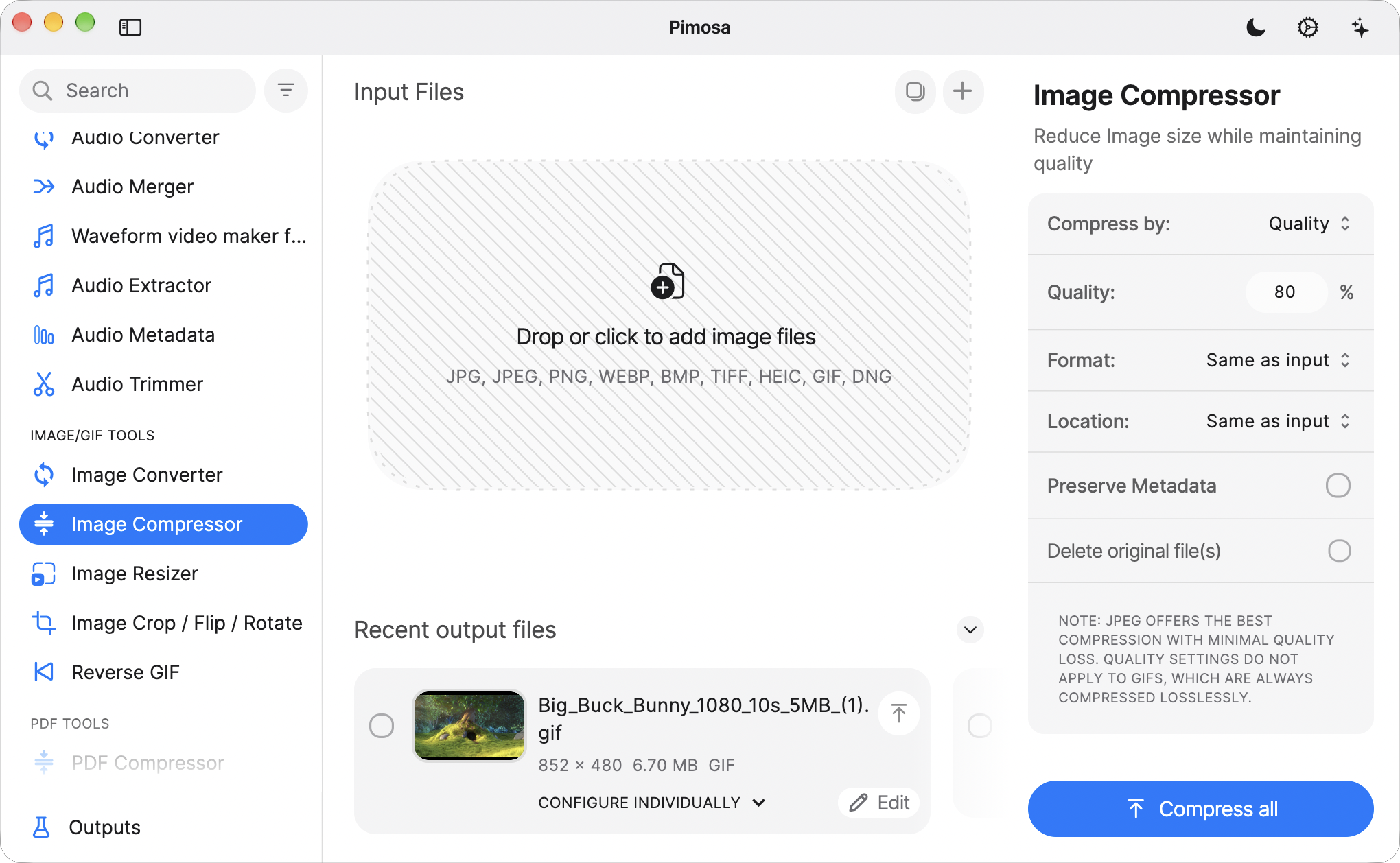
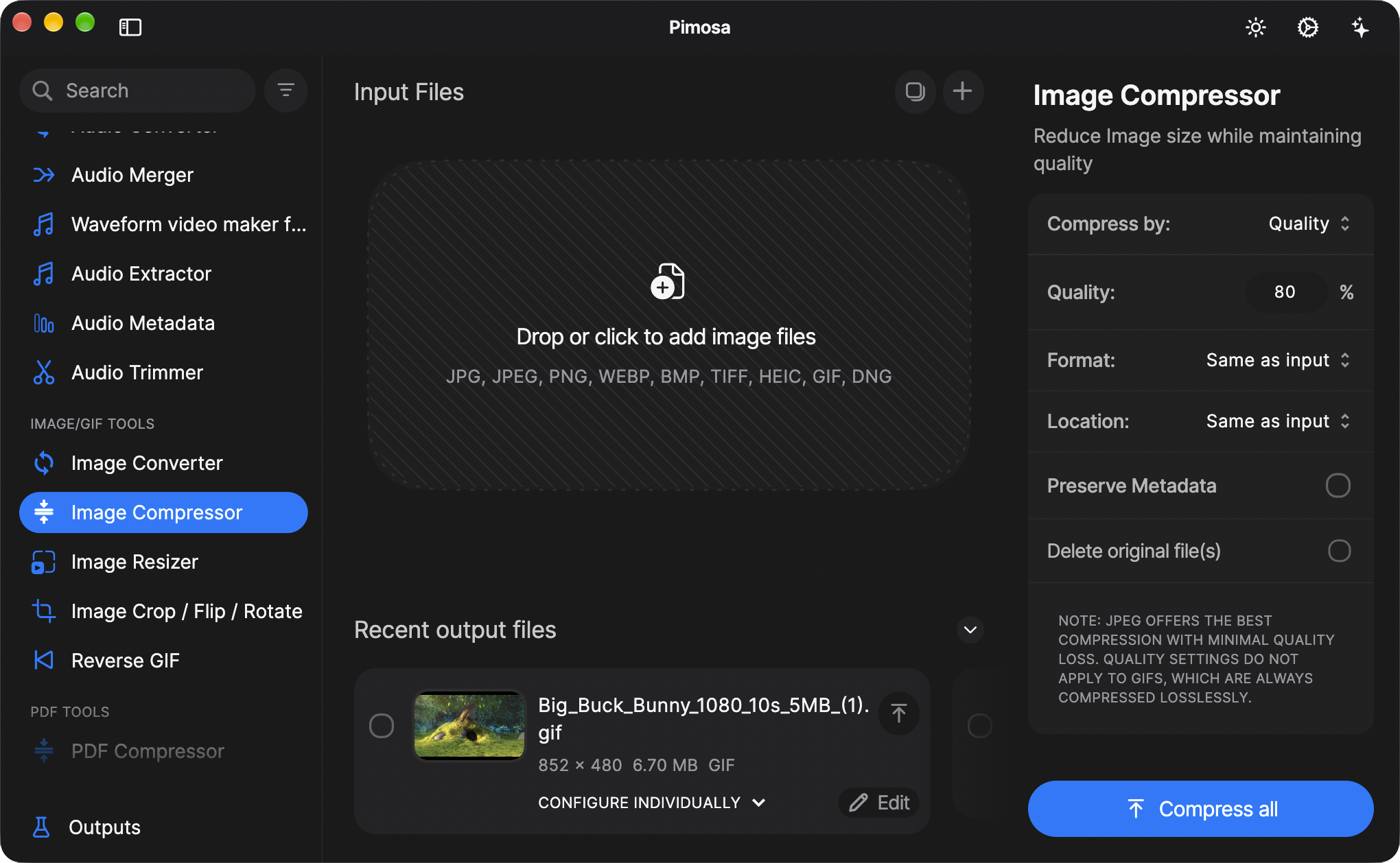
Launch Pimosa and select Image Compressor. There is no separate GIF Compressor tool.
Step 3: Add your GIF
Drop the GIF in. You can queue several files if you are compressing a batch for a Discord server.
Step 4: Compress, or remake smaller
Image Compressor compresses GIFs losslessly. The quality slider does not apply, so savings are modest.
If the file is still over Discord’s limit, remake it with GIF Maker: lower FPS and a smaller size. For Discord’s 8 MB free limit, 480px or 320px width and 15 fps is a practical starting point for most memes.
Step 5: Save and upload to Discord
Save the file and upload it in Discord. If it still exceeds the limit, drop size or FPS one more step.
Quality vs file size: practical tradeoffs
| Technique | Size reduction | Quality impact |
|---|---|---|
| Resize to 480px width | High | Low for chat GIFs |
| Drop to 15 fps | High | Low for most memes |
| Reduce colors | Medium | Medium on gradients |
| Crop unused areas | Medium | None if crop is tight |
For Discord chat, viewers see GIFs at small inline sizes anyway. A 480px-wide GIF often looks identical to a 1080p original in a message thread.
Making GIFs from video first
If your source is a screen recording or clip, do not export at full resolution and frame rate. Use the GIF Maker tool in Pimosa to:
-
Convert video to GIF at a reasonable resolution (480p or 640p).
-
Set a lower frame rate (10–15 fps).
-
Trim to only the seconds you need.
Then compress if still over 8 MB. Starting with a smaller source GIF is easier than compressing a monster file after the fact.
Common mistakes
Compressing twice with different tools. Each re-encode can degrade quality. Do it once in one app.
Ignoring frame count. Trimming 2 seconds off a GIF can save more size than aggressive compression on the full clip.
Uploading the original “just to see.” Discord will reject it. Check file size in Finder or Explorer first, right-click → Properties/Get Info.
FAQ
What is Discord’s GIF size limit for free users?
8 MB for uploaded GIFs on free accounts. Nitro raises this to 50 MB for most uploads.
Will compressing a GIF make it look bad?
Lossless compression in Image Compressor should not change how the GIF looks. Making a smaller remake in GIF Maker (lower FPS or size) can, which is the tradeoff when you need to get under 8 MB.
Can I compress GIFs without uploading to a website?
Yes. Pimosa compresses GIFs locally on your Mac or Windows computer. Your files never leave your device.
Should I use MP4 instead of GIF on Discord?
Discord often embeds MP4 clips more efficiently than GIFs. But if you specifically need a GIF (for reactions, emoji servers, or platforms that require GIF), compression is the right path.
Get your GIFs under Discord’s 8 MB limit without browser uploads. Download Pimosa and use Image Compressor.