 Pimosa
Rearrange and fix PDF pages
Drag pages into order, remove the ones you don’t need, crop and rotate, then save a new PDF. Encrypted PDFs open if you supply the password.

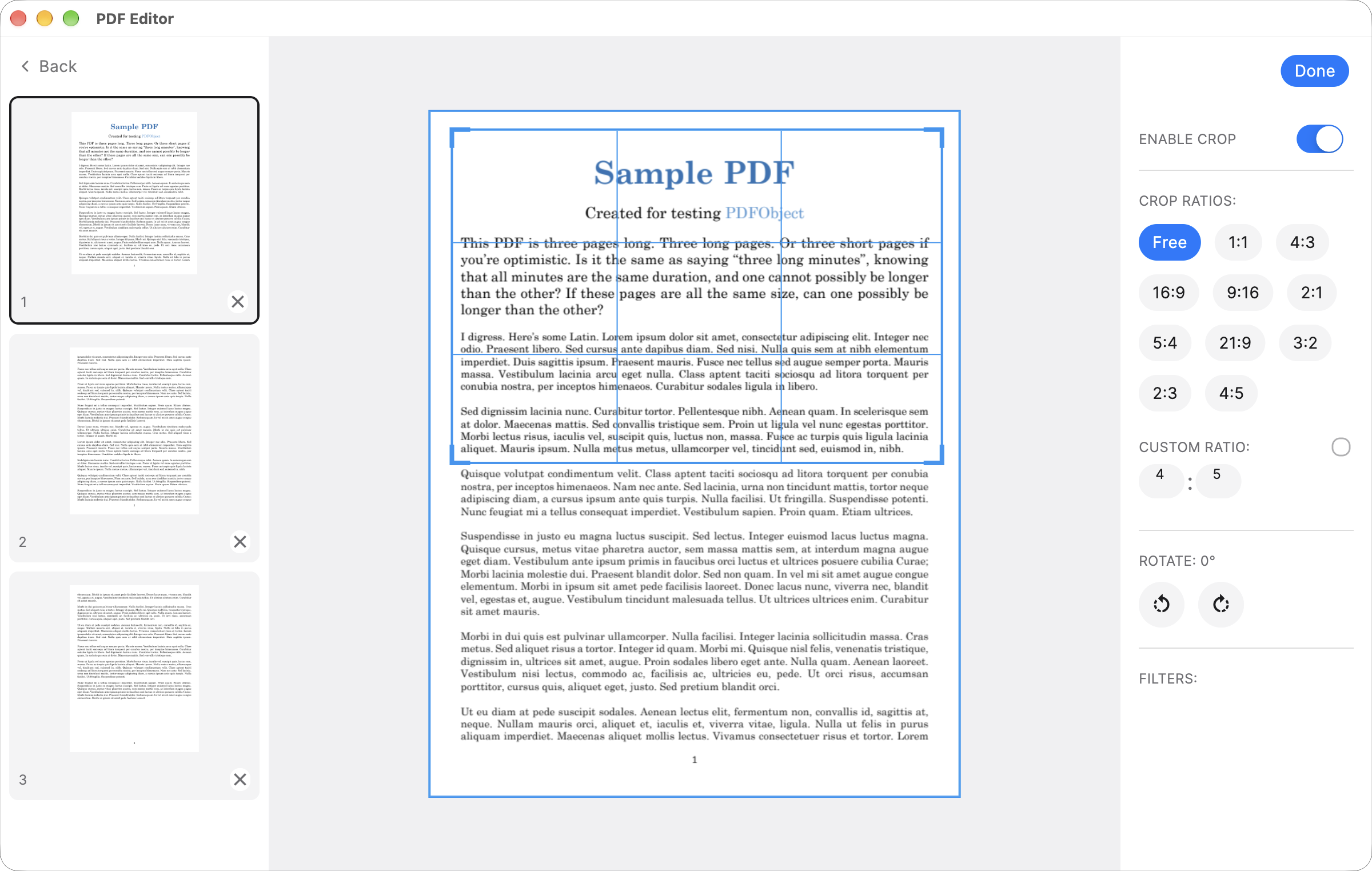
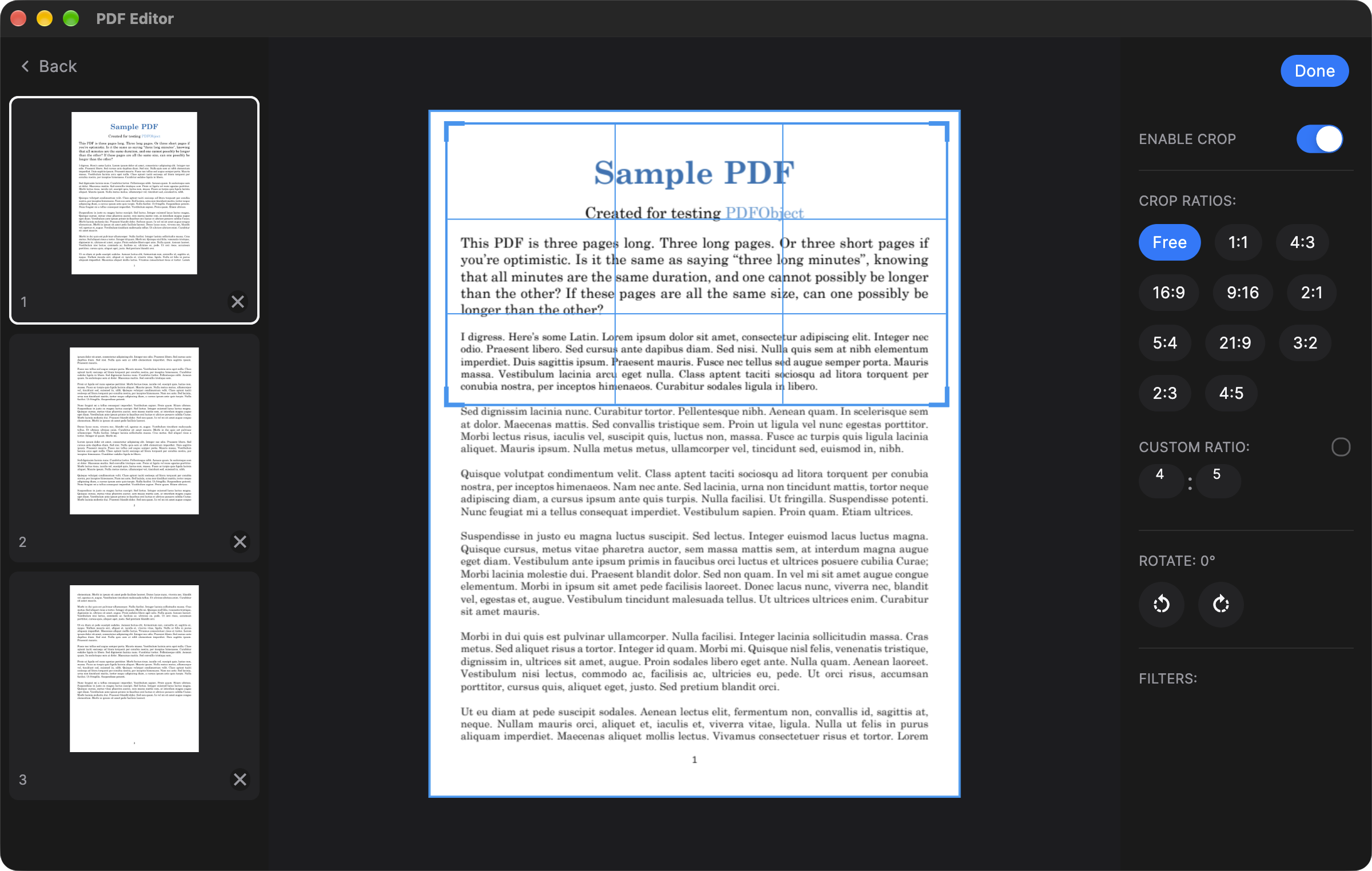
How it works
Drop your PDFs
Drag files or a folder onto the tool, or click to pick them.
Arrange the pages
Drag to reorder, delete pages, crop and rotate them.
Press Save
The new file appears next to the original, or in your default output folder.
Done by hand in the app (the AI agent can’t run this one).
Specs
- Opens
- Saves as
- Settings
- Order, delete, crop, rotate
- Batch
- One PDF at a time
- Limits
- Does not edit text, fonts or forms
- Originals
- Untouched; a new file is saved next to it (deleting the original is opt-in)
Settings explained
- Setting
- Reorder by dragging
- Setting
- Delete pages
- Setting
- Crop per page (Free, 1:1, 4:3, 16:9, 9:16, 2:1, 5:4, custom)
- Setting
- Rotate 90° left/right
Good to know
- Does not edit text, fonts or forms
Pimosa vs online tools
Your file stays on this computer. Nothing is uploaded to process it.
Upload needed?
Pimosa: No. Media processing stays on your computer.
Typical online tool: Yes. You send the file to a server.
Size caps?
Pimosa: No website upload cap. You’re limited by your own disk.
Typical online tool: Hosts often cap uploads.
Works offline?
Pimosa: Yes.
Typical online tool: No. You need a connection to upload.
Questions
Can I edit the text in a PDF?
No. This is a page editor.
Can the AI agent use it?
No, it stays manual.
Related tools
PDF Splitter
Pick pages in the editor and export them as separate files. Encrypted PDFs open if you supply the password.
PDF Merger
Drag PDFs into order and merge them; optionally edit each file’s pages first. Encrypted PDFs open if you supply the password.
PDF Compressor
Make PDFs smaller without sending them to a website. Scanned documents shrink most. Encrypted PDFs open if you supply the password.


